That 5K screen
has years left in it.
The 27-inch iMac that’s been with you for years still has a beautifully clear screen. Plug in one Thunderbolt cable, and it becomes your new Mac’s second display.
Display² Pro · Try it on your own desk for 24 hours, then decide. Purchase outside mainland China is coming soon.
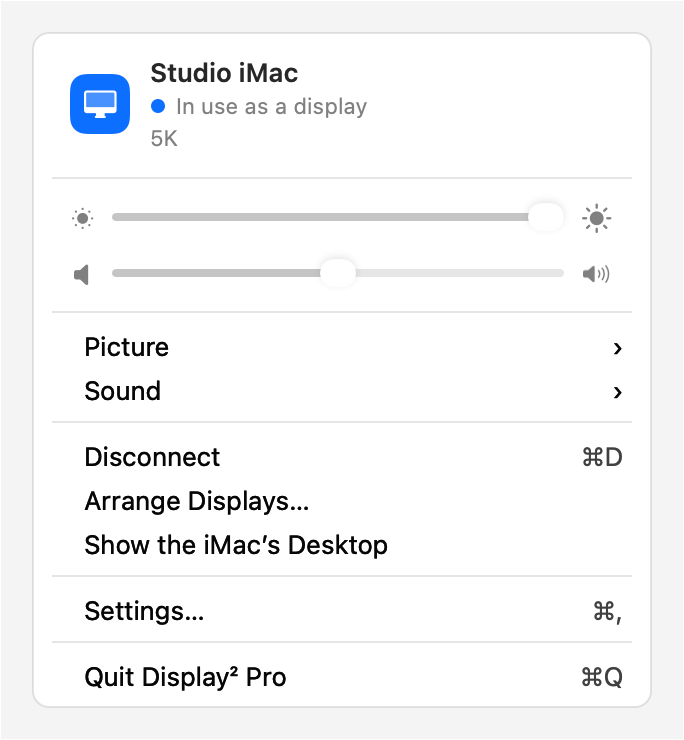
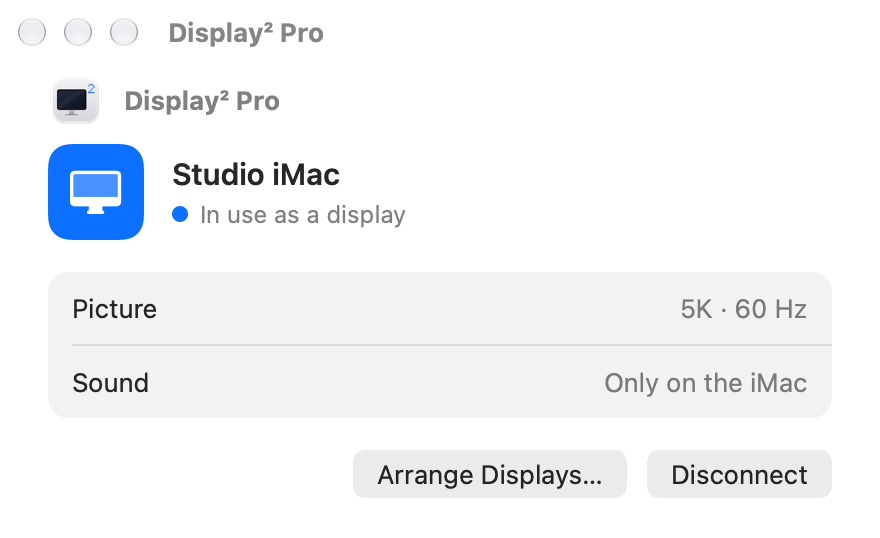
The devices are an illustration. The menu and window on their screens are the real Display² Pro interface.
5120 × 2880. At a 5K picture level, every pixel on that screen gets used.
Up to 60 Hz. How smooth it feels depends on how fast your Mac can encode. We won’t promise more than that.
One Thunderbolt cable. Plug it in and it connects. Unplug and plug back in, and the picture returns.
The iMac stays as it is. The receiver is just an app. Quit it, and it’s the iMac you know, your photos and files untouched.
Before you buy
Will your two
computers work?
Pick your two computers, and see right away whether they work and which cable to use. Still unsure? Try it for 24 hours.
The iMac you’ll use as a display
Your newer Mac
Yes, in 5K.
Connect the two directly with a Thunderbolt 3 or later cable.
The Mac needs macOS 14 or later; the iMac needs macOS 11 or later. Not sure? Try it free for 24 hours on your own two computers.
On a Mac, choose Apple menu › About This Mac to see its model and macOS version. For every model and cable, see Help.
Once it’s connected
To your Mac,
it’s simply a display.
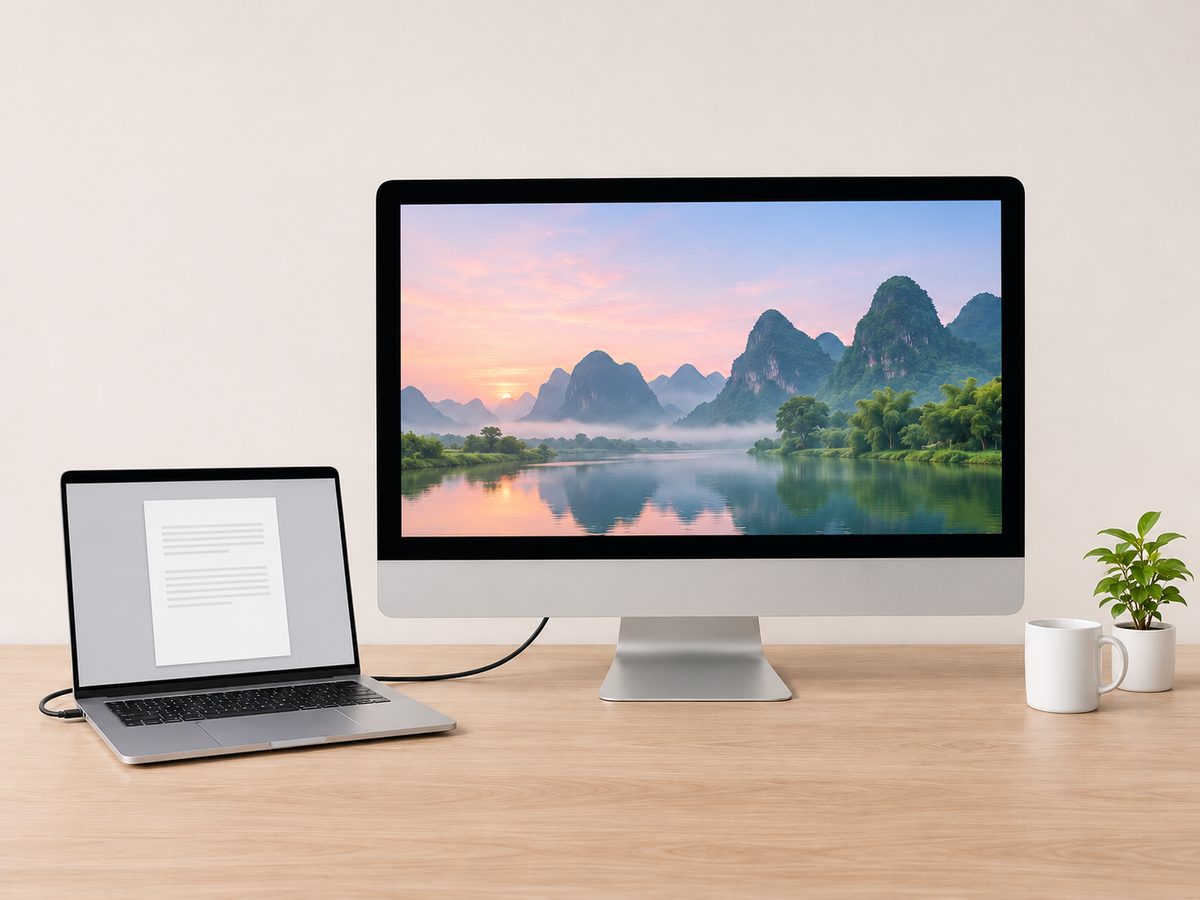
Drag windows across and arrange the screens, as with any external display. Nothing new to learn.
 Illustration
A second display
Room to spread out, and your photos on a screen big enough to see the detail.
 Illustration
Mirroring
The same picture on both screens, to show the people around you.
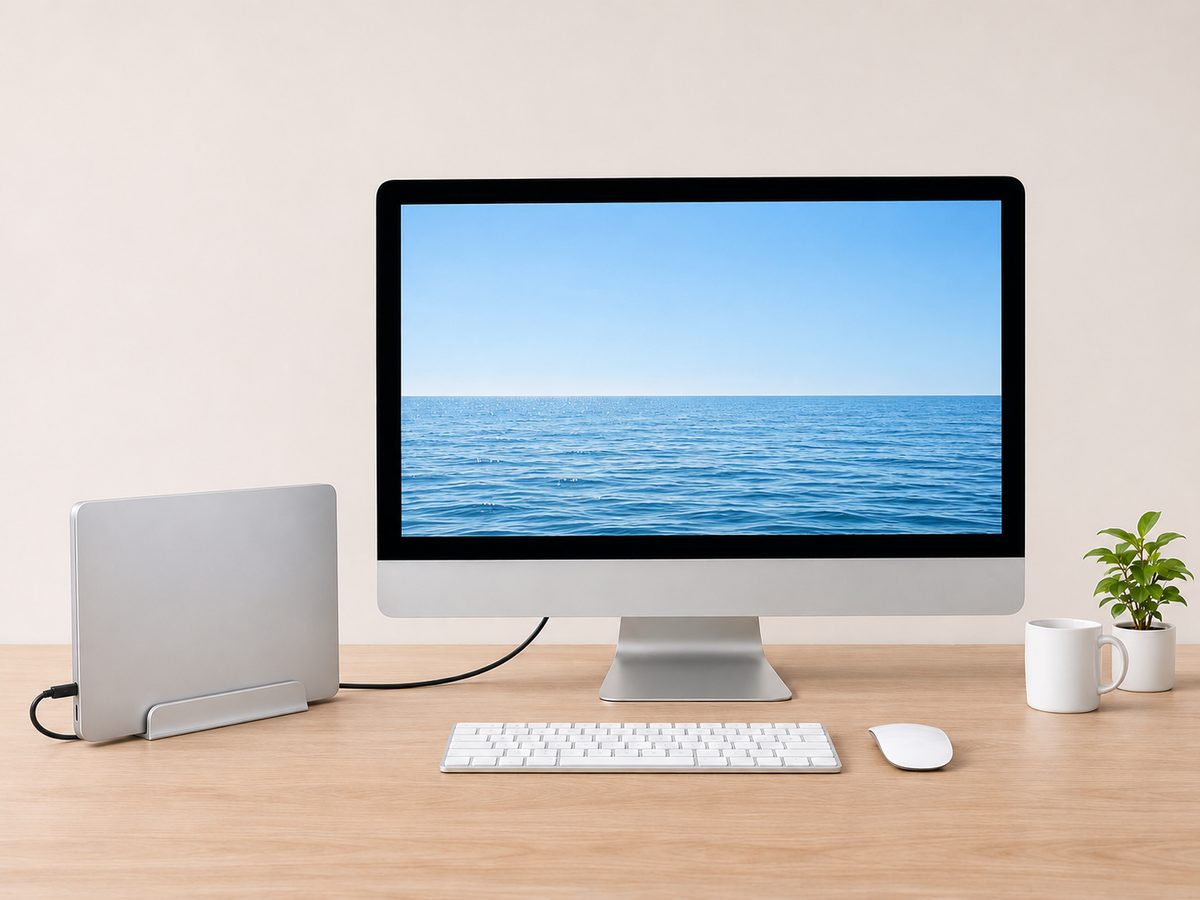 Illustration
Only the iMac
Close your MacBook and settle in at the big screen.
All in the menu bar
Brightness, volume and picture level, one click on the Display² Pro icon. Each iMac keeps its settings for next time.
Back to the iMac’s own desktop
Press it on the iMac’s keyboard, and again to come back. Or choose “Show the iMac’s Desktop” in the menu.
Sound, where you want it
Only on the iMac, on both, or only on this Mac.
Shared keyboard and mouse
Use the iMac’s keyboard and mouse to control this Mac.
Brightness keys
With the pointer on the iMac, the brightness keys adjust the iMac.
Your screen never crosses the internet
Over a cable, picture and sound travel only along that cable. No account to create; no name, phone number or email collected. Privacy
Pro Mode
Text, pixel for pixel.
Over a Thunderbolt or USB data cable, the desktop, web pages and documents can reach the iMac exactly as they are, with no video compression. Dragging windows and scrolling follow your hand more closely. Photos and video are still compressed, and stay smooth.
Desktop and text
Sent to the iMac as it is
Photos and video
Compressed as usual, just as smooth
It’s on by default: when this Mac’s video compression can’t keep up, the picture goes to the iMac without it. The switch is in Settings › Advanced › Picture and Connection; turn it off and the picture is always compressed. Not available over Ethernet or Wi-Fi.
Set up
Four steps,
then it just works.
The installer holds two apps: Display² Pro for your Mac, and Display² Pro Receiver for the iMac.
Install Display² Pro on your Mac
Open the installer, drag “Display² Pro” into Applications and open it. Enter your activation code, or choose “Try It First”. When asked, allow Screen & System Audio Recording in System Settings › Privacy & Security.
Install the receiver on the iMac
Copy the same installer to the iMac, drag “Display² Pro Receiver” into Applications, and open it.
Connect a Thunderbolt cable
Give it about half a minute, and the iMac appears in Display² Pro.
Choose “Use as Display”
The first time, the iMac shows a 6-digit pairing code. Type it on your Mac. After that, plugging in the cable is enough.
You only need to allow Accessibility if you want the iMac’s keyboard and mouse to control your Mac. No Thunderbolt cable at hand? A USB data cable or an Ethernet cable works for now; see Which cable.
Buying
Pay once,
keep using it.
One activation code for one Mac. The receiver on the iMac is free. No subscription, no account. Purchase outside mainland China is coming soon.
Not sure yet? That’s fine. Install it and use everything for 24 hours, no code needed. If you like it, enter a code in the same app and keep going.
- 5K and every feature
- Works offline once activated
- Restores itself after you reinstall macOS, once you’re online
- Moves to a new Mac when you change computers, up to 3 times per code
- Download the installer and put one app on your Mac and one on the iMac.
- Enter your activation code in Display² Pro.
- Connect the cable, and it works.
Questions
Which cable do I need?
One Thunderbolt cable, usually marked with a lightning bolt on the plug. It’s the connection we support, and the one that carries 5K. 2014 and 2015 iMacs have Thunderbolt 2 ports and also need Apple’s Thunderbolt 3 (USB-C) to Thunderbolt 2 Adapter. A USB data cable or an Ethernet cable works for now if that’s all you have, but cables vary so much that we can’t promise how good or smooth the picture will be. A charge-only cable can’t carry a picture.
Is it really 5K?
Yes. A 27-inch iMac shows 5K, and Display² Pro uses 5K by default. If this Mac can’t keep up with 60 Hz, the default is “5K · 48 Hz”. If it falls behind while you work, the main window says so and offers “Smooth · 4K 60”: the desktop stays the same size, text is a little softer, and motion is smoother.
Will it lag?
The picture on the iMac arrives a little after your Mac’s own screen. How much depends on the two computers and the picture level. If it feels slow, try “Smooth · 4K 60” first. We don’t recommend it for games where every moment counts. On 2014 and mid-2015 iMacs, Display² Pro uses “Standard · 1440p” by default.
Can I try it first?
Yes. Use everything free for 24 hours, no code needed. See Free trial.
Why not the iMac’s Target Display Mode, or Sidecar?
Target Display Mode exists only on some iMacs from 2009–2014; no 5K iMac from late 2014 on has it. Sidecar turns an iPad into a second display, not an iMac. Display² Pro is made for exactly these 5K iMacs.
What if I get a new Mac?
On the old Mac, open Display² Pro’s settings and choose “Move to Another Mac…” in the Activation row, then enter the same code on the new Mac. Each code can move up to 3 times.
Something isn’t working. What now?
In Display² Pro, choose Settings › Advanced › Send Report…. The report reaches us directly, with what we need to look into it.
Why I made Display²
Keep it lit.
Many 27-inch iMacs have kept someone company for years. The thesis, the edited photos, the first film cut together: all of it happened on that screen.
Then the computer slowed down, a new Mac arrived, and the iMac went into a cupboard. But that 5K screen is as clear and lovely as ever.
I wanted it to stay lit, as a big screen for a newer Mac. One less computer gathering dust, one more good screen on the desk. That’s what Display² is for: no account to create, pay once, keep using it.
If anything feels rough, send a report from the app. It comes to me, and I read every one.
The developer of Display²
 Illustration
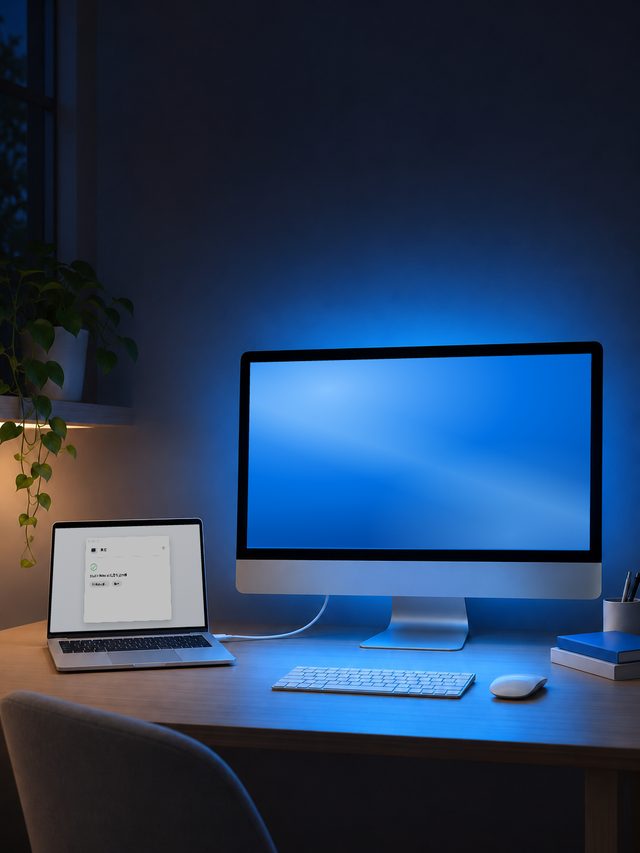 Illustration
Questions before you buy?
Support for people outside mainland China is still being set up. Until then, Help answers most questions about Macs, cables, setup and activation. And the free trial is the surest answer: try it on your own two computers.