A Mac mini with no display: use the iMac
A Mac mini or Mac Studio can run without a display of its own, with the iMac as its only screen. The first time, borrow a display or a TV to set it up. If you then connect the iMac without shutting down, there’s nothing to type blind. If you shut down and move it, there are only two blind steps.
1. First setup: borrow a display or a TV
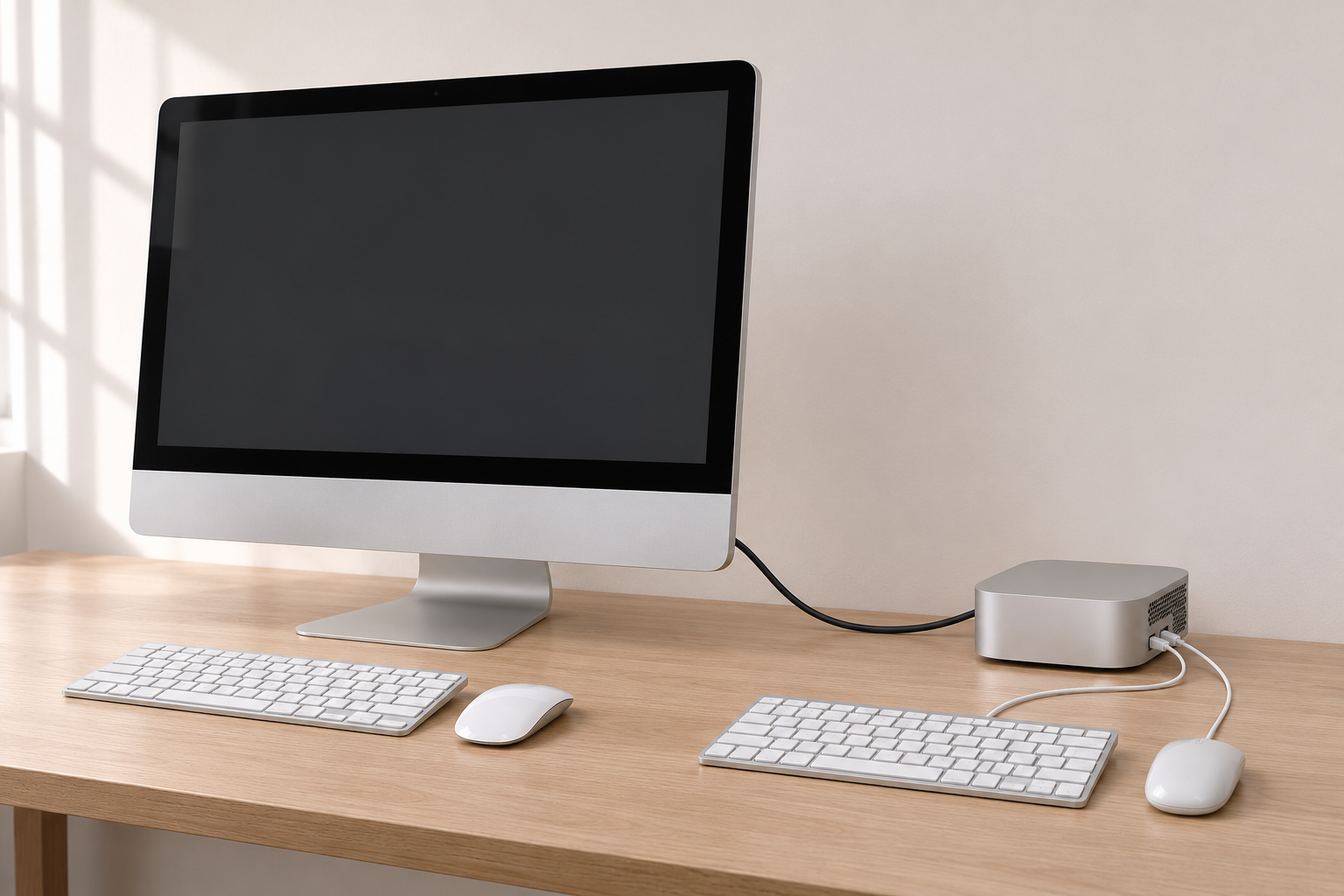
Connect the Mac mini to a display or TV with HDMI, then do three things.
- Open the installer, drag “Display² Pro” into Applications, open it, and activate it with your activation code.
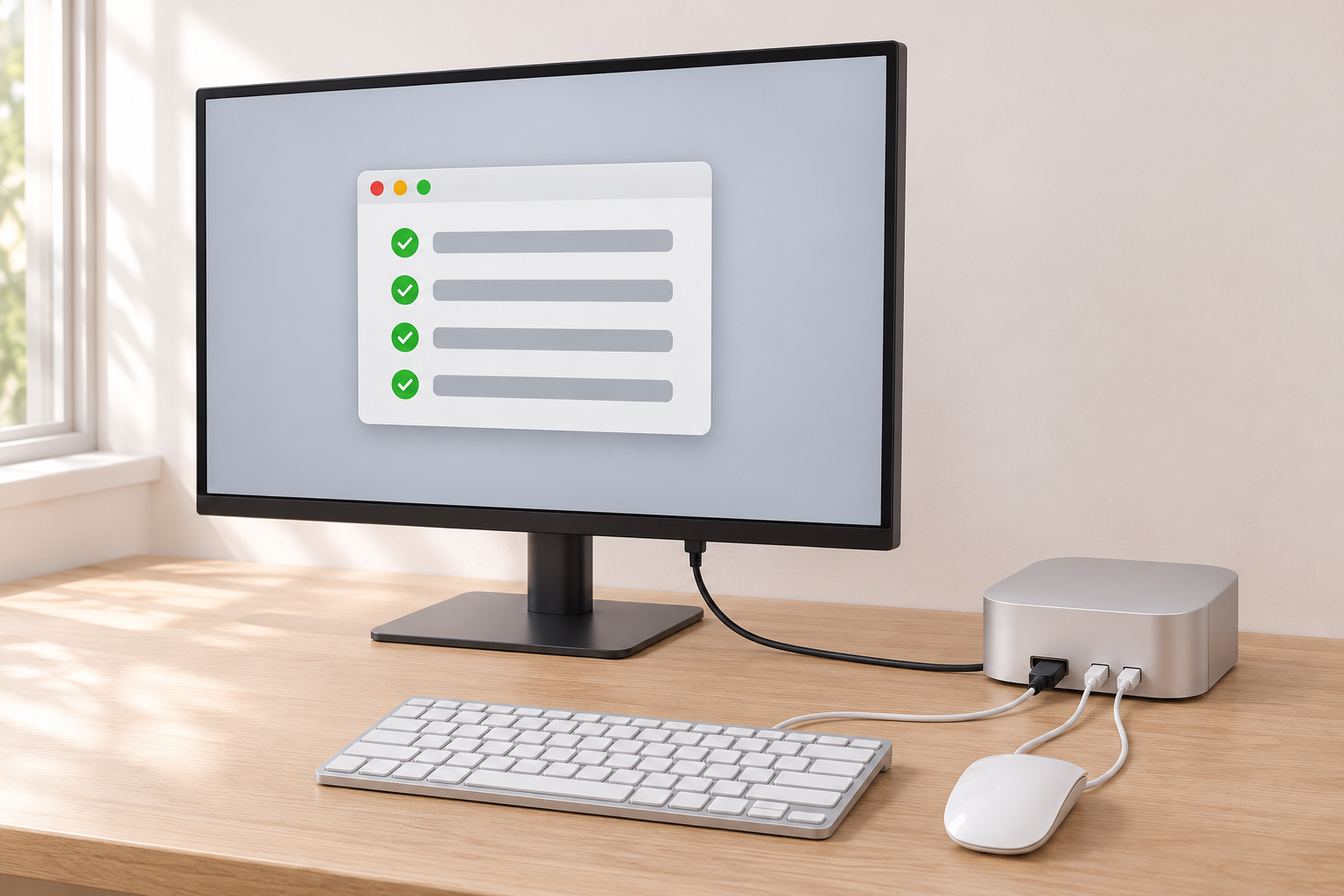
- Click the Display² Pro icon in the menu bar › Settings… › General, and turn every row of “Use only the iMac” into a green checkmark: allow Screen & System Audio Recording (Screen Recording on macOS 14), “Open at login”, “Connect automatically when the cable goes in”, and “Keyboard & Mouse: Control this Mac from the iMac”.
- Connect the iMac in one of the two ways below.
The switches for “Open at login” and “Connect automatically when the cable goes in” are at the top of the General page. You can ignore Screen Sharing and Remote Login.
Keep the Mac mini running Recommended
- On the iMac, open “Display² Pro Receiver”. When it asks, choose to open it at login.
- Leave the display connected for now, and connect the Thunderbolt cable to the iMac.
- In the Display² Pro window, click “Use as Display”, then type the pairing code that appears on the iMac.
- When the picture appears on the iMac, unplug the borrowed display.
Nothing to type blind.
Shut down and move it
If the display is too far from the iMac, or you’re moving the Mac mini next to the iMac: shut it down, move it, and follow part 2 below.
2. After moving it: only two blind steps
Now the Mac mini has no display, so you can’t see its screen. Keep its own keyboard and mouse connected; don’t take them away. Connect the Mac mini and the iMac with the Thunderbolt cable.
This part needs a Thunderbolt cable: with no screen to look at, Display² Pro starts pairing by itself only over Thunderbolt. If you only have a USB data cable or Ethernet, finish pairing in part 1 while the borrowed display is still connected, then unplug the display.
- On the iMac, open “Display² Pro Receiver”. The screen shows “Waiting for your Mac”.
- Press the power button and wait about a minute. On a Mac Studio the button is at the back. On a Mac mini it’s at the back too, or on newer models from 2024, underneath at the back-left corner.
- Blind: on the Mac mini’s keyboard, press any key, type your login password, press Return, and wait a moment.
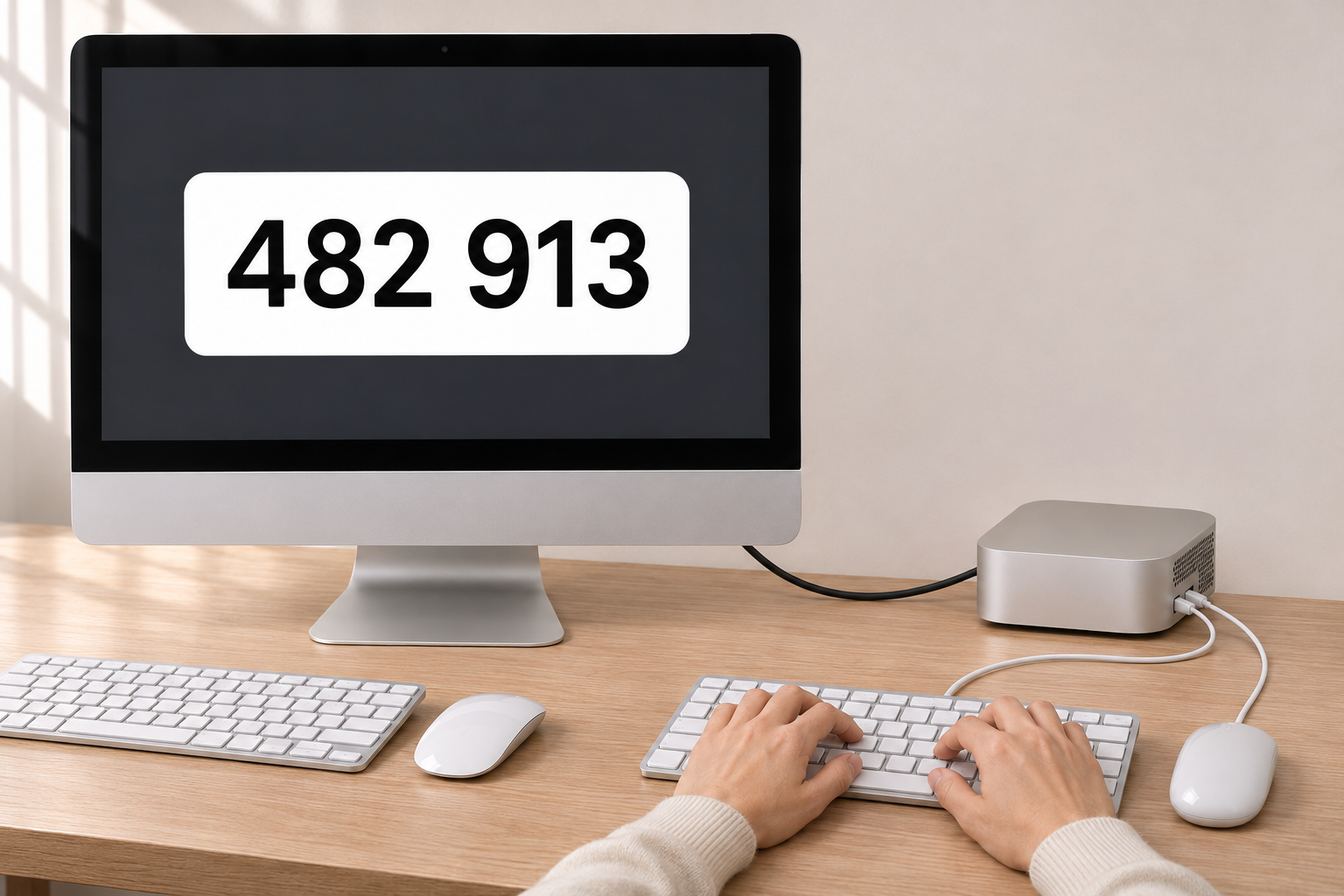
- The iMac shows a 6-digit pairing code. It’s valid for 60 seconds; when it expires, a new one replaces it by itself.
- Blind: type those 6 digits on the Mac mini’s keyboard. It sends itself after the sixth digit; there’s no need to press Return.
- When the Mac mini’s picture appears on the iMac, you’re connected. You won’t need a pairing code again, and the iMac’s own keyboard and mouse can control the Mac mini too.
Each time it starts up
After the Mac mini restarts, macOS asks for your password once; then Display² Pro opens and connects by itself. Type the password blind on the Mac mini’s own keyboard, as in step 3.
You can also turn on automatic login: System Settings › Users & Groups › Automatically log in as. It can’t be on together with FileVault (disk encryption). With it on, you don’t type a password at startup, but anyone who switches the Mac on gets straight in. Weigh that for your own situation.
If you get stuck
After a minute, there’s still no pairing code on the iMac
Check that the receiver is open on the iMac and the Thunderbolt cable is firmly in. Then unplug the Thunderbolt cable and plug it back in, and the pairing window comes up again. If that doesn’t help, connect the display to the Mac mini again and check that every row in part 1 still has its checkmark.
I missed the pairing code
If nobody types it, the iMac shows a new code twice, then stops. Unplug the Thunderbolt cable and plug it back in to start again.
Paired, but there’s no picture
Most likely Screen & System Audio Recording isn’t allowed yet. Connect the display again and check that row in part 1.
I typed the code wrong
The iMac shows a new code; type that one. After 5 wrong codes in a row, there’s a wait before you can try again, a minute the first time.
Support
Support for people outside mainland China is still being set up. Meanwhile, in Display² Pro on your Mac, click “Send Report…” in Settings › Advanced. It sends the details straight to us.
The pictures on this page are illustrations; your models and desk may look different. For anything else, see Help.