Plug in your iPad.
It’s your second display.
Display² for iPad makes your iPad your Mac’s second display by itself. Plug it in and it connects; while it’s plugged in, a dropped connection comes back; size, mirroring and place stay the way you left them.
Display² for iPad · version 0.9.6 · A 24-hour free trial with everything starts the first time it connects to your iPad.

Devices and picture are illustrations.
Plug it in, it connects. No trip to Control Center to choose Sidecar each time.
While it’s plugged in, a dropped connection comes back. Unplug while connected and it carries on over Wi-Fi; plug back in and it’s on the cable again.
It remembers how you like it. Each iPad keeps its size, mirroring and place for next time.
Only on your Mac. Nothing to install on the iPad. The picture is macOS’s own Sidecar.
Features
All in the menu bar,
one click away.
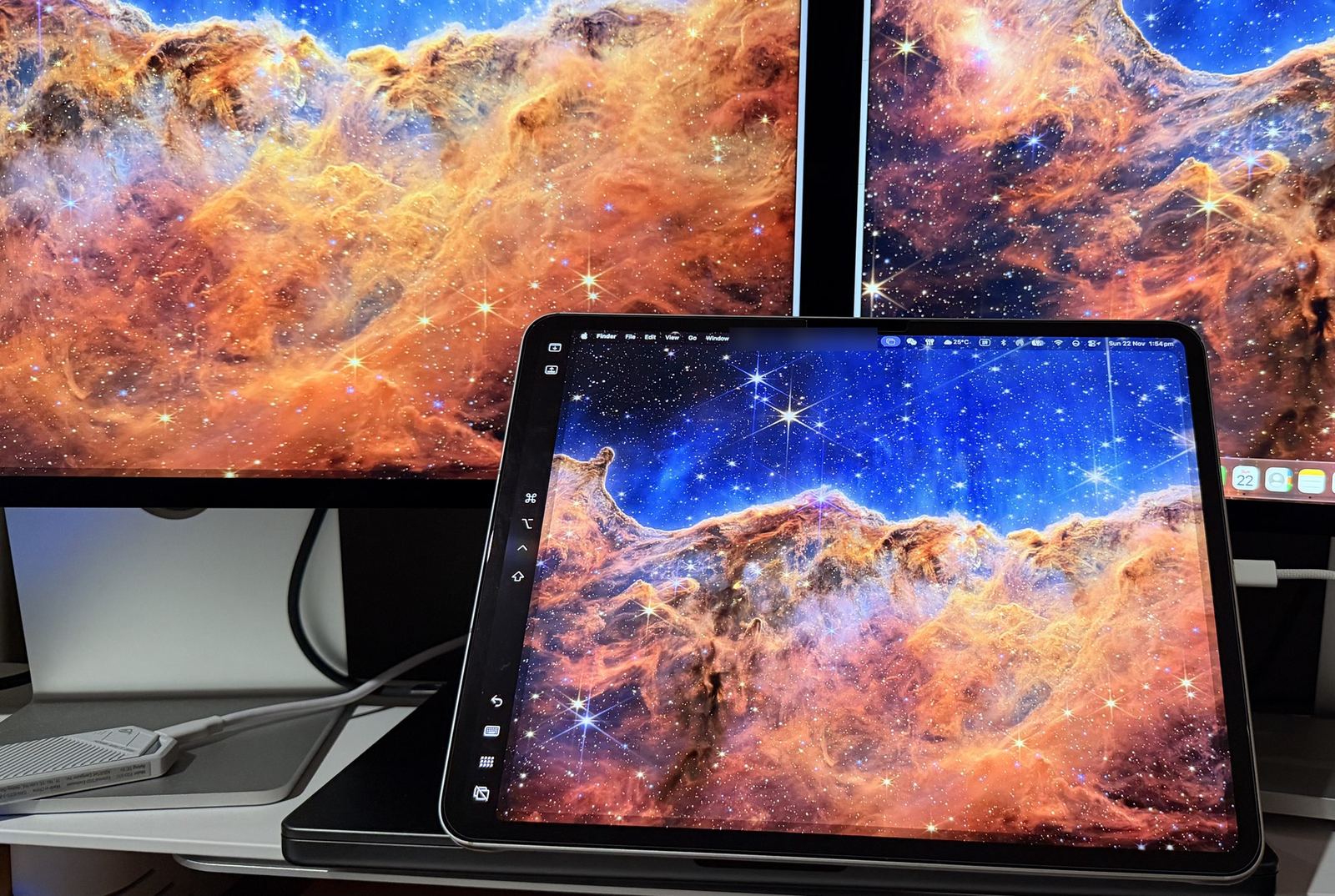
Display² for iPad has no main window. It lives in the menu bar at the top of the screen, and once connected you can leave it alone.
 Illustration
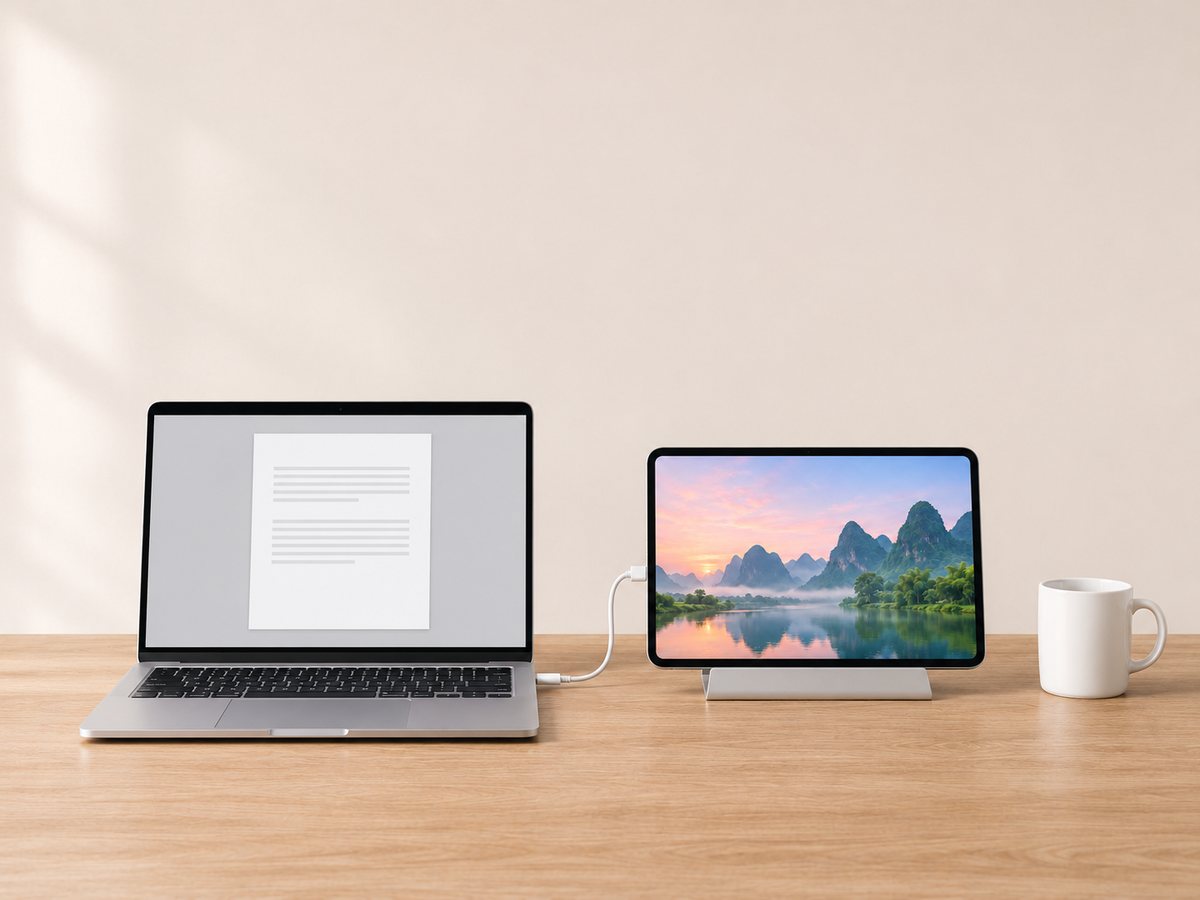
A second display
Drag windows across: notes on one screen, your work on the other.
 Illustration
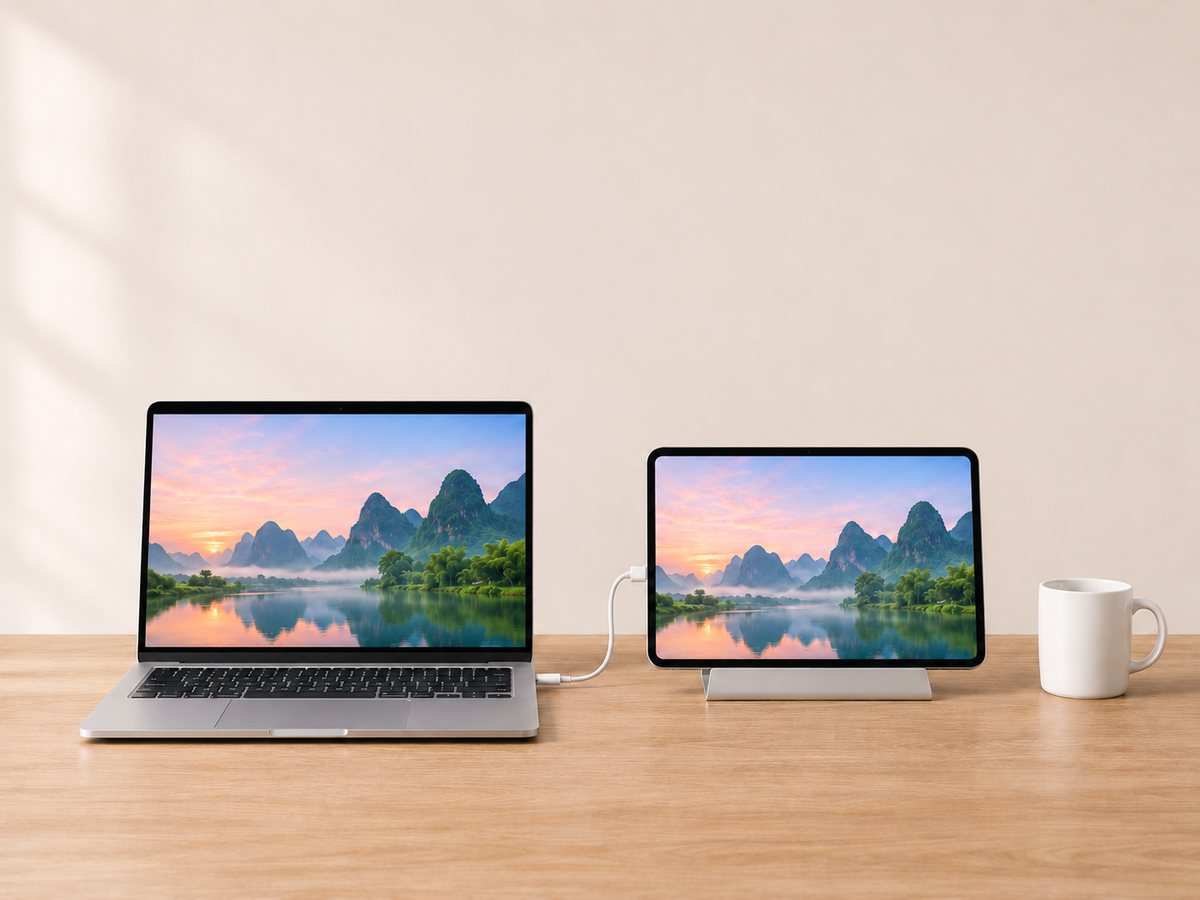
Mirroring
Tick “Mirror This Mac’s Display” to show the same picture on both.
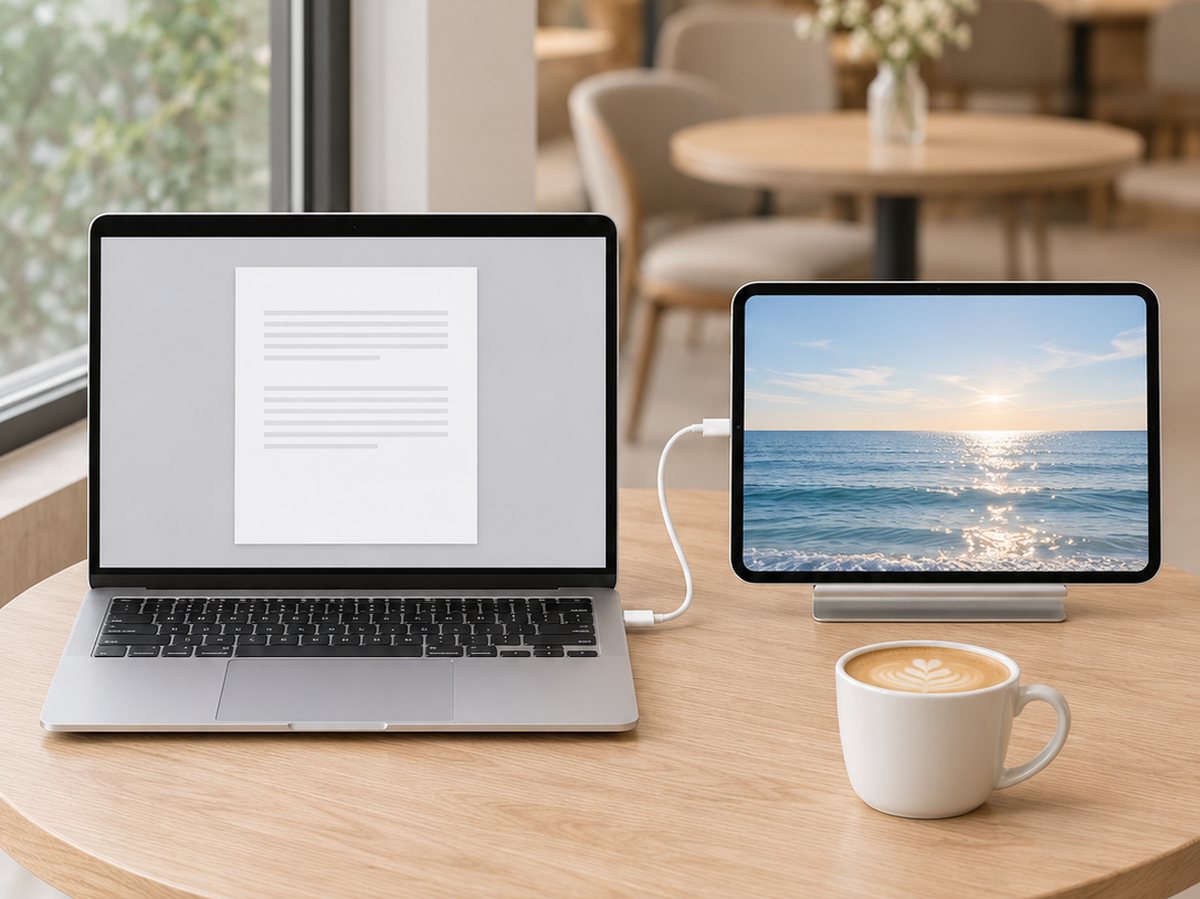 Illustration
The same wherever you go
Two screens in one bag. Plug in, and it’s set up the way you like.
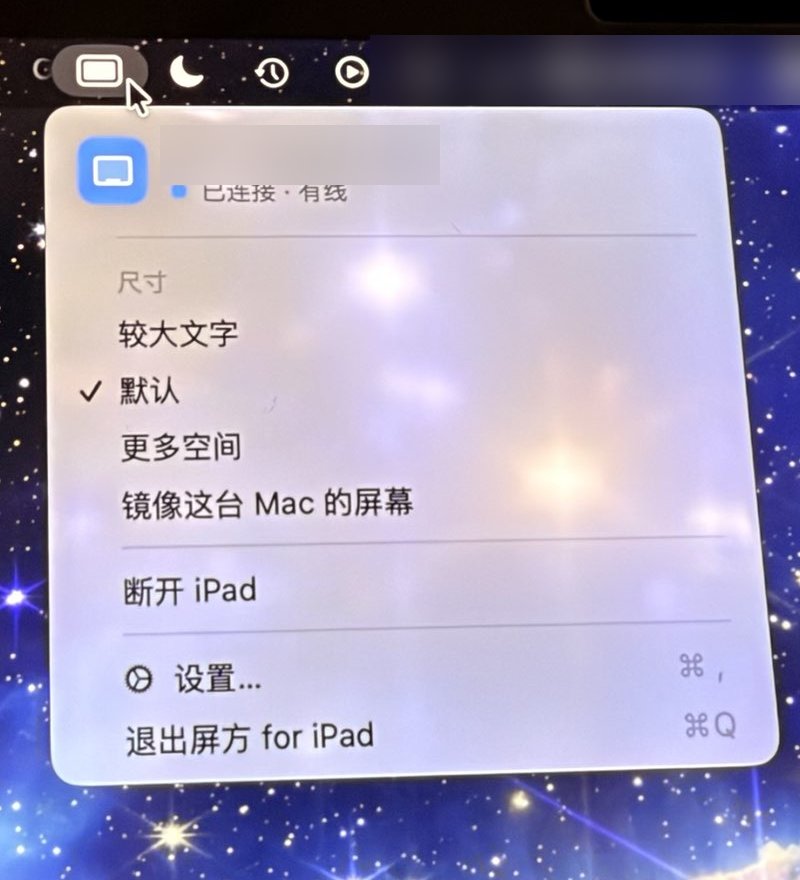
A real photo of the menu. The app is in Chinese for now; the top line shows your own iPad’s name, blurred here.
See at a glance whether it’s connected
The top line shows your iPad’s name and what it’s doing: connected, nearby, or locked. When it can’t connect, it says why and what to do.
Three sizes
Larger Text, Default and More Space. Text too small? Choose Larger Text. Want room for more windows? More Space.
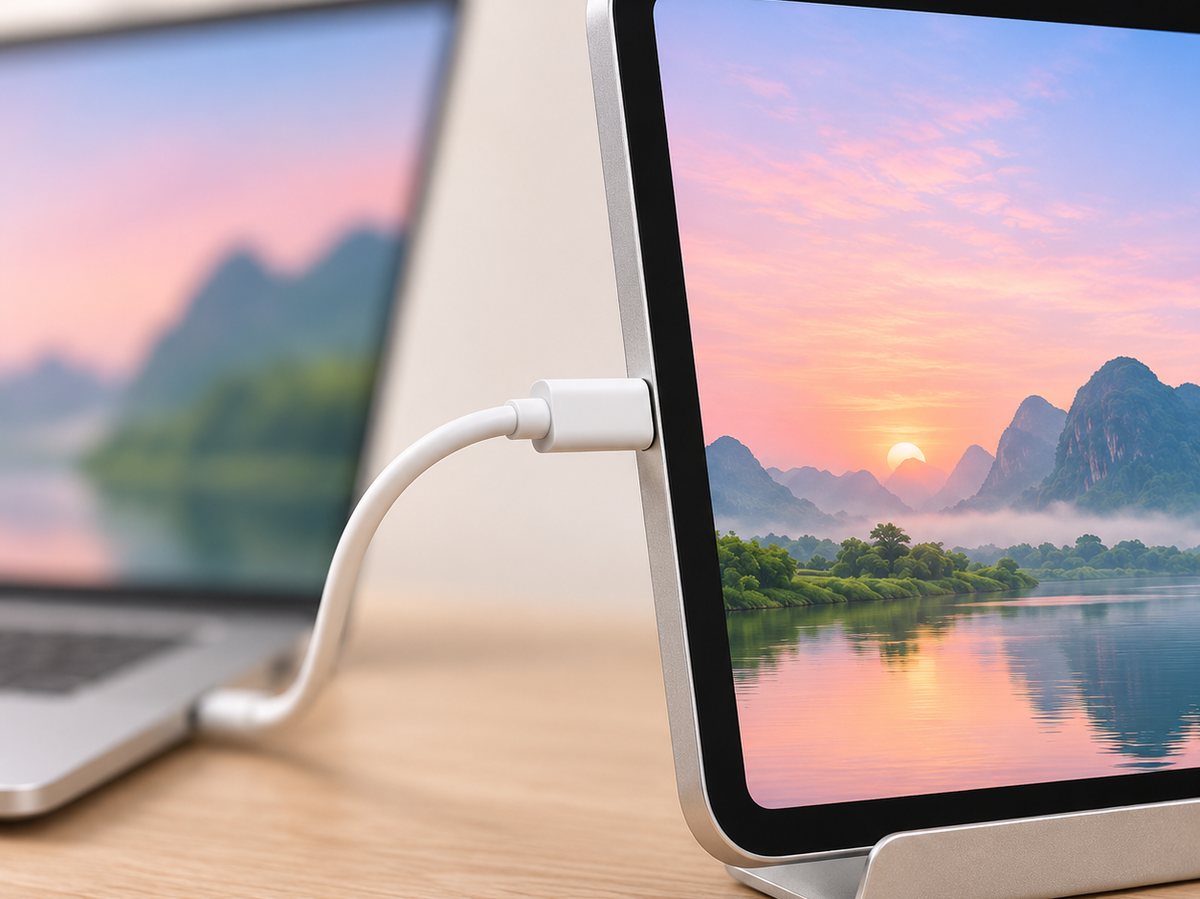 Illustration
Plug in, it connects
While it’s plugged in, a dropped connection comes back.
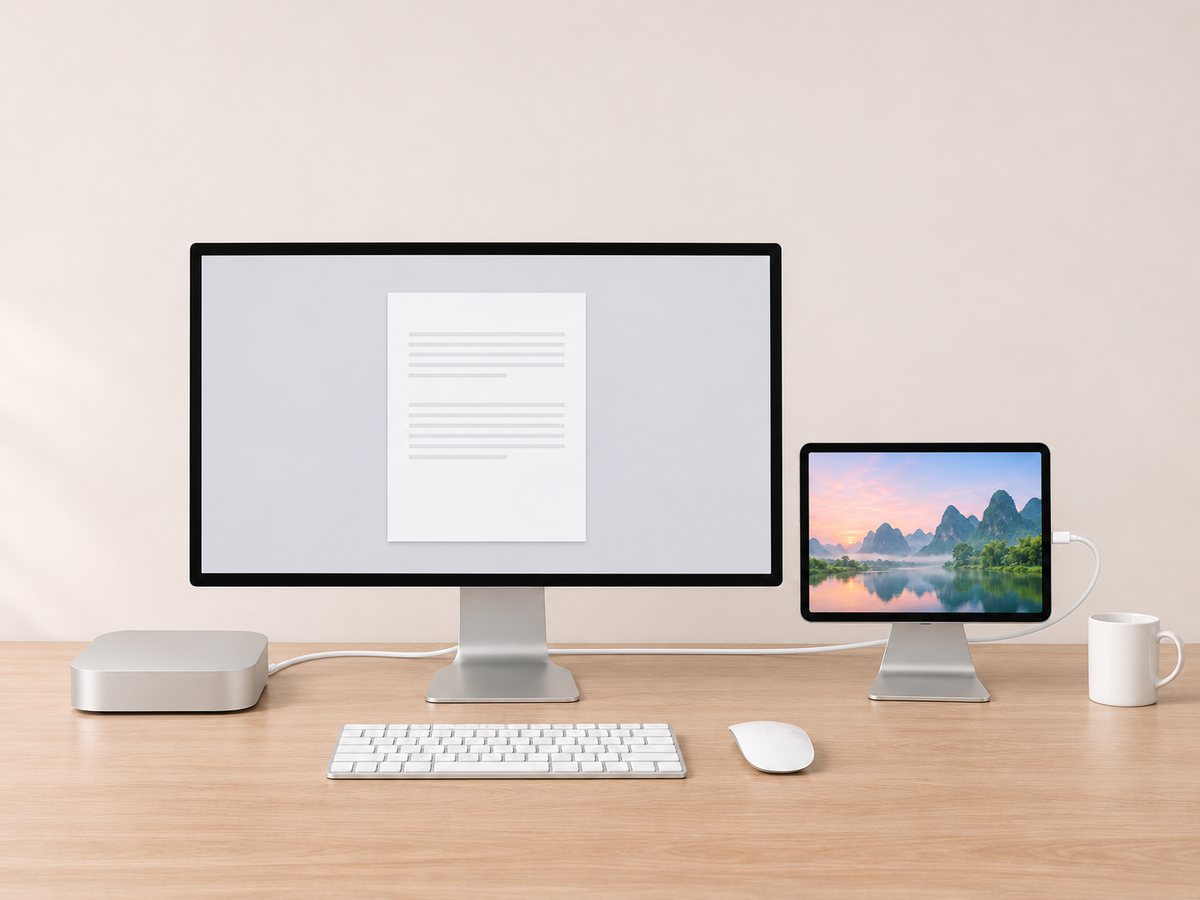 Illustration
Mac mini too
With a monitor connected, the iPad is the extra screen beside it. No monitor? Try “No-Screen Mac”: see the FAQ.
 Illustration
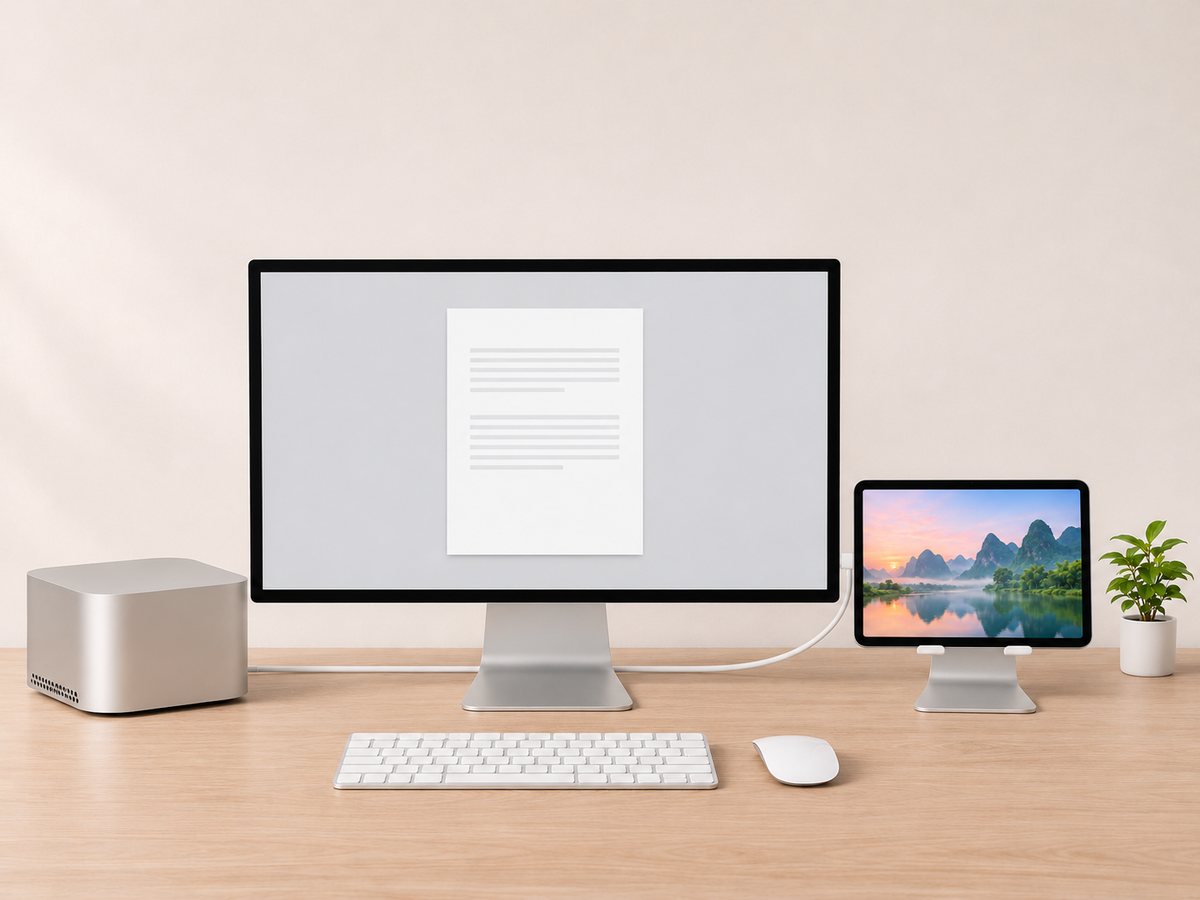
Mac Studio too
Tool palettes and references on the iPad; the main display stays on your work.
No cable to hand?
Keep the iPad nearby and unlocked, then choose “Connect over Wi-Fi”.
Open at Login
Turn it on once; after a restart there’s nothing to find.
Something wrong?
Choose “Send Report…” in Settings. It sends the details straight to us.
Before you start
Three things,
that’s all.
Set up
Install once.
Then just plug in.
Install on your Mac
Open the installer, drag the app into Applications and open it. In the Finder it is called “Display2iPad” for now.
Follow the welcome window
Check the iPad and Mac share an Apple Account, turn on Open at Login, and click the button to start.
Plug in, unlock the iPad
The first time, the iPad asks whether to trust this computer. Tap Trust.
From then on, it just connects
A few seconds later the iPad is one of your Mac’s displays, in the place and size you left it.
Trial
Try it for 24 hours,
with everything.
The trial starts the first time it connects to your iPad. No activation code needed; starting it needs the internet on your Mac once.
Purchase outside mainland China is coming soon.
- One activation code activates one Mac; the iPad needs none
- Use a different iPad, no new code needed
- A separate app from Display² Pro; codes aren’t interchangeable
FAQ
How is it different from Sidecar on its own?
The picture is macOS’s own Sidecar, just as sharp and responsive. On its own, Sidecar has to be chosen in Control Center each time, chosen again after a drop, and sometimes rearranged. Display² for iPad does those clicks for you.
Do I install anything on the iPad?
No. There’s one app, on your Mac.
What language is the app in?
Chinese, for now. The menu has only a few lines, and this page shows what each one does.
Does it work without a cable?
Yes. Keep the iPad nearby and unlocked and choose “Connect over Wi-Fi” in the menu. Sidecar needs both devices within 10 metres, with Bluetooth, Wi-Fi and Handoff on. If a Wi-Fi-only connection drops, choose it again in the menu.
Do Apple Pencil and the iPad sidebar still work?
They’re part of Sidecar, and Display² for iPad doesn’t change them.
Can I connect two iPads at once?
One at a time. You can switch to another iPad; each keeps its own size and place.
Can a Mac mini with no display use the iPad as its only screen?
Yes. It’s an experimental feature, turned on in Settings… › No-Screen Mac. Once you’re logged in, the iPad is the Mac’s only screen. Set it up with a monitor or TV connected; once the iPad shows a picture, unplug the display’s cable (switching it off is not enough). Keep the Mac’s own keyboard plugged in. Before login the iPad shows nothing: with FileVault on, or without automatic login, you type your password blind once after a restart, and about ten to twenty seconds later the iPad shows the desktop. To go back, connect any display.
Something went wrong. What do I do?
In Display² for iPad, go to Settings… › General › Help and choose “Send Report…”. It sends the details straight to us. Support for people outside mainland China is still being set up.