Free for 24 hours
You can try everything in Display² Pro free for 24 hours, with no activation code. Rather than take our word for it, install it on your own Mac and iMac, connect the cable, and see whether it suits your desk. Then decide.
Open the installer on your Mac, which needs macOS 14 or later. The receiver for the iMac is in the same installer.
Before you try, check two things
- Both computers are among the supported models.
- You have a Thunderbolt cable at hand. A 2014 or 2015 iMac also needs Apple’s Thunderbolt 3 (USB-C) to Thunderbolt 2 Adapter.
How to start the trial
- On your Mac, open the installer, drag “Display² Pro” into Applications, and open it.
- On the activation page, click “Try It First”. This step needs the internet once.
- When asked, allow Screen & System Audio Recording in System Settings › Privacy & Security.
- Copy the same installer to the iMac, drag “Display² Pro Receiver” into Applications, and open it.
- Connect the two computers with the Thunderbolt cable. On your Mac, click “Use as Display”, then type the 6-digit pairing code shown on the iMac.
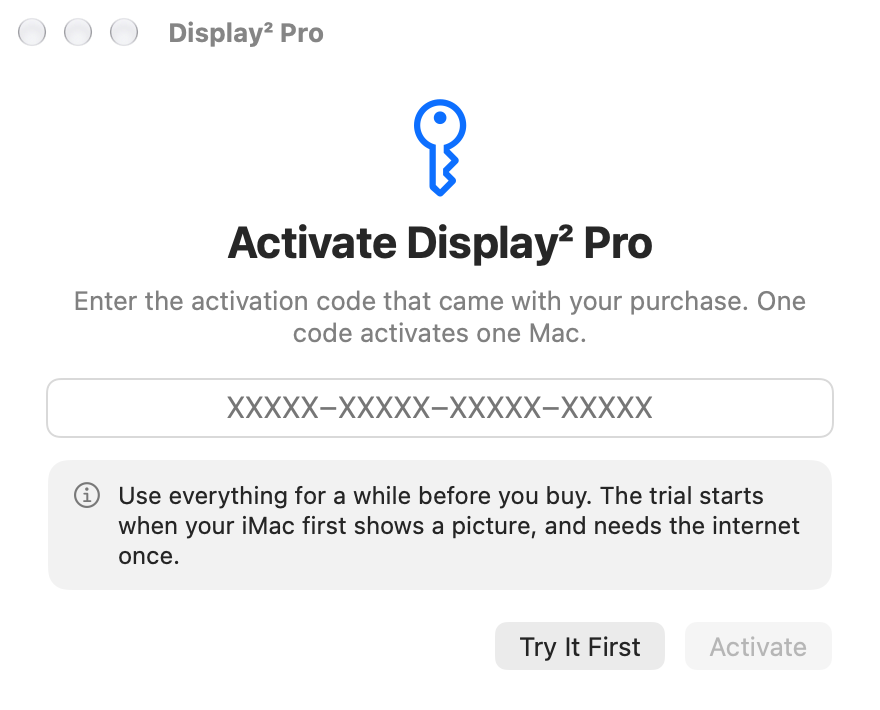
The 24 hours start the moment the iMac shows a picture. Installing works just as in the full version; the steps, with screenshots, are in Help. You can also look over the four setup steps on the home page first.
Good to know
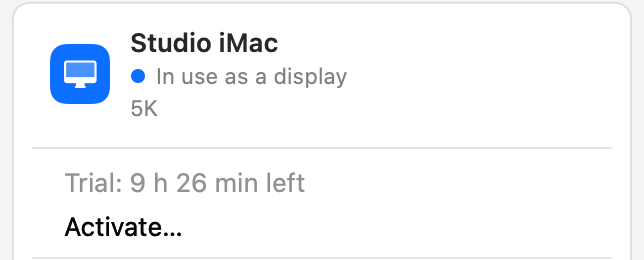
- 24 hours, from the iMac’s first picture. The time keeps running through disconnects and shutdowns. To see how much is left, click the Display² Pro icon in the menu bar; it shows something like “Trial: 3 h 20 min left”.
- Everything works, as in the full version. 5K, Pro Mode, sound and brightness are all there to try.
- One trial per Mac. It’s counted on the Mac where Display² Pro is installed, not on the iMac. Reinstalling Display² Pro or macOS doesn’t start it again.
- Starting it needs the internet once. Without it, the iMac shows no picture, and Display² Pro tells you that starting the trial needs the internet once. Connect to the internet, then connect the iMac again.
- A Mac that’s already activated doesn’t show the trial. Just use it.
When the trial ends
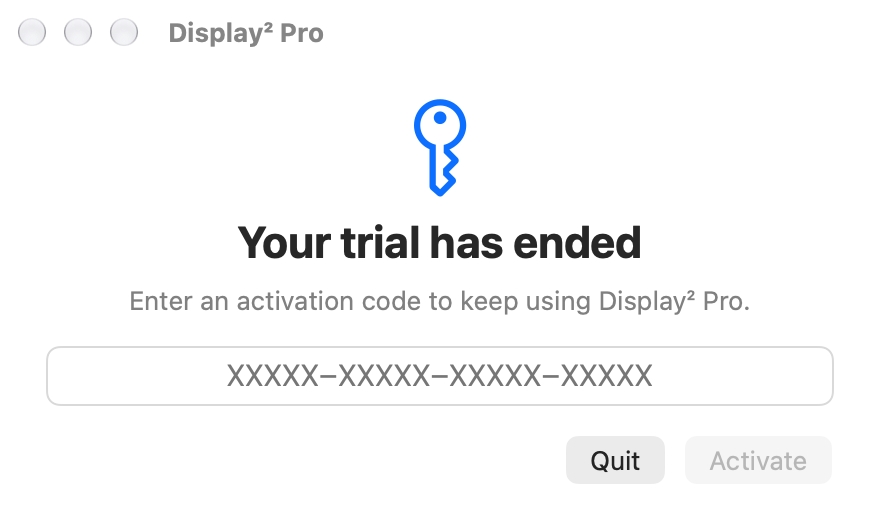
After 24 hours, the picture on the iMac stops, and Display² Pro goes back to the activation page, titled “Your trial has ended”. Everything you installed stays as it is: enter an activation code, and carry on.
To keep using it
Purchase outside mainland China is coming soon. Once you have an activation code:
- On the activation page of Display² Pro on your Mac, enter the code and click “Activate”. Activation needs the internet. If your code came as an activation link, you can just click it.
- Once activated, connect the cable and use it as before. There’s nothing to download or reinstall.
You can also activate before the trial ends: click the Display² Pro icon in the menu bar, choose “Activate…”, and enter your code.
One activation code per Mac; the receiver on the iMac is free. For activation, moving to a new Mac and other questions, see Help.
Trouble during the trial
First look through the common questions in Help. If that doesn’t solve it: support for people outside mainland China is still being set up. Meanwhile, in Display² Pro on your Mac, click “Send Report…” in Settings › Advanced. It sends the details straight to us.