Target Display Mode on a 2017–2020 iMac: What Works Instead
If you pressed Command-F2 on a 2017, 2019 or 2020 iMac and nothing happened, nothing is broken. No Retina 5K iMac ever had Target Display Mode. Apple stopped the feature at the mid-2014 models, and no setting, cable or older macOS brings it back. What works today is one of three things: AirPlay to Mac, which is free but only for 2019 and newer iMacs and never full 5K; a one-cable software app that drives the whole panel; or a hardware adapter. Which one fits depends on your iMac's year, and the verdicts by year are at the end.
 Illustration
Why pressing Command-F2 does nothing
 Illustration
Target Display Mode was a real feature, and the shortcut is real too, which is why it is so confusing when it does nothing. On the iMacs that had it, you connected another Mac, pressed Command-F2, and the iMac's screen showed the other Mac's desktop. Press it again and you were back.
That feature existed only on iMacs up to mid-2014. The first Retina 5K iMac arrived in late 2014, and it never had Target Display Mode: not at launch, not after any update, and not on any later model. Not the 2015, 2017, 2019 or 2020 iMac, and not the iMac Pro. When you press Command-F2 on one of those machines, the shortcut is not failing. There is simply nothing on the other end of it.
If your iMac is one of the models that did have it, it can still appear dead for three small reasons, all on Apple's support page. If "Use F1, F2, etc. keys as standard function keys" is turned on, the shortcut becomes Command-Fn-F2. Some third-party keyboards don't support it, so use the iMac's own keyboard. And you need to be logged in to a user account on the iMac.
Which iMacs ever had Target Display Mode
Apple's support page is short, and its list ends in 2014 (Apple Support: Use your iMac as a display with Target Display Mode, read 2026-11-23):
- 24-inch and 27-inch iMacs introduced in 2009 and 2010: Mini DisplayPort cable
- iMacs introduced in 2011, 2012, 2013 and mid-2014: Thunderbolt or Thunderbolt 2 cable
- The late 2014 Retina 5K iMac and every iMac after it: not on the list
The double lock: both Macs have to be old
Even if you own an iMac on that list, read this part. Target Display Mode has two software locks, and both must be open at the same time:
- The iMac acting as the display must run macOS High Sierra 10.13.6 or earlier. If it was ever updated past High Sierra, the feature is gone.
- The Mac feeding it must have been introduced in 2019 or earlier and run macOS Catalina or earlier. Target Display Mode also doesn't support Boot Camp or Windows.
So no Mac with Apple silicon can use Target Display Mode, even with an iMac that is on the list. Every Apple silicon Mac was introduced after 2019 and shipped with a macOS newer than Catalina.
This is also why "just install an older macOS" is not an answer for a 5K iMac. The 5K iMacs were never on Apple's list, and downgrading changes nothing.
Three methods that work today
A 2017–2020 27-inch 5K iMac is still a very good screen: 5K, wide colour, 500 nits. There are three ways to put another Mac's picture on it.
| Method | Which iMacs | Picture | Cost | Needs |
|---|---|---|---|---|
| AirPlay to Mac | 2019 or newer, iMac Pro | Below 5K, compressed | Free, built into macOS | Wi-Fi, macOS Monterey or later |
| One-cable software (Display² Pro) | 2014–2020 27-inch 5K, iMac Pro | Full 5K up to 60 Hz from 2017 on; a lower picture level on 2014 and 2015 | One-time payment, 24-hour free trial | One Thunderbolt cable |
| Hardware adapter | Check the maker's list | Check the maker's specs | Hardware purchase and shipping | The adapter |
Method 1: AirPlay to Mac. Free and wireless, but not 5K
Since macOS Monterey, a Mac can receive AirPlay from another Mac, including as an extended display. It costs nothing and needs no cable or app: turn on AirPlay Receiver in the iMac's System Settings, then choose the iMac from Screen Mirroring in Control Centre on the sending Mac.
The catch is which iMacs can receive. Apple requires a 2019 iMac or newer, or an iMac Pro, on macOS Monterey or later. The 2017 iMac can send AirPlay but can't receive it, so for that model this route is closed. Where AirPlay does work, the picture travels as compressed video over Wi-Fi: softer than the panel's native 5K, and the pointer and windows trail a little behind your hand. It is the right answer when you want a free second screen right now, and the wrong one when you bought the iMac for its screen.
Method 2: One-cable software. Display² Pro
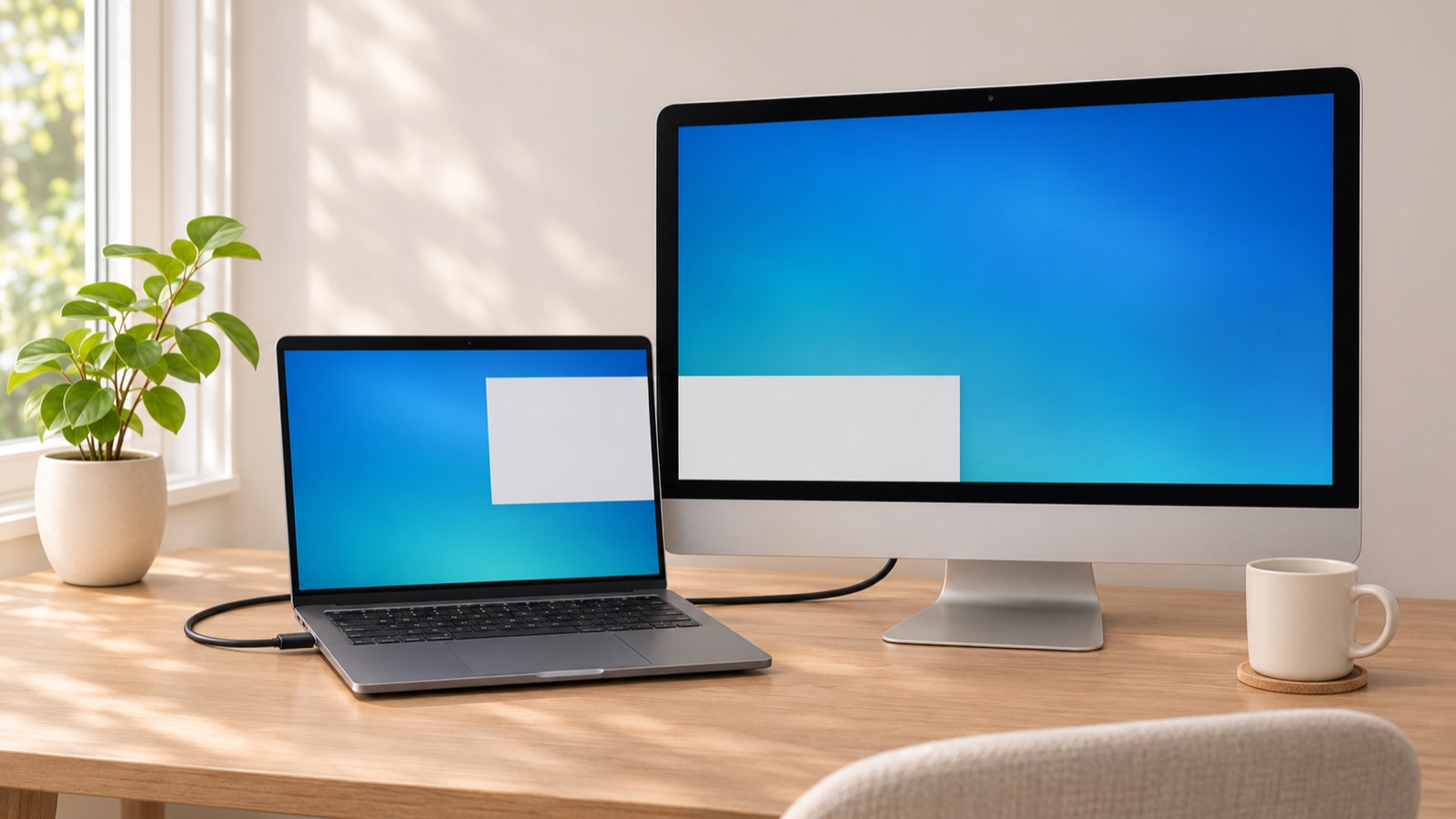
Display² Pro was built for this gap. It turns a 2014–2020 27-inch 5K iMac, or an iMac Pro, into a second display for a newer Mac over one Thunderbolt cable. Your Mac needs Apple silicon (M1 or later) and macOS 14 or later; the iMac needs macOS 11 or later. On a 2017 or later iMac the picture is the full 5120×2880 at up to 60 Hz; 2014 and 2015 iMacs struggle to decode 5K and use a lower picture level.
Setup is four steps: install Display² Pro on your Mac; install the receiver on the iMac; connect a Thunderbolt cable; and the first time, type the 6-digit pairing code the iMac shows. After that, plugging in the cable is enough. To your Mac, the iMac is simply a display: drag windows across, arrange the screens, mirror, or close the MacBook and work on the big screen alone.
A few things to know:
- If your Mac can't keep up with 60 Hz, Display² Pro uses "5K · 48 Hz" by default. It never drops to 4K by itself. If you want smoother motion, you can choose "Smooth · 4K 60": the same desktop size, slightly softer text, smoother movement.
- Pro Mode sends the desktop and text uncompressed over a Thunderbolt or USB cable, so text is pixel-for-pixel. Photos and full-screen video are still compressed. It works best with a solid-colour wallpaper on the iMac.
- There is some latency: the iMac's picture is a moment behind your Mac's own screen. Office work, writing, photo editing and coding are fine. We don't recommend it for games where every moment counts.
- It doesn't modify the iMac: the receiver is just an app. Quit it and the iMac is back to normal, files untouched. No account, the picture never crosses the internet, and no subscription.
Method 3: A hardware adapter
Some makers sell a small adapter that plugs into the host Mac and presents the iMac as a display. These have been around for years and are well documented. The cost is buying the hardware, waiting for shipping, and one more thing plugged into your Mac. Which iMacs they support, and at what resolution and refresh rate, varies by maker, so check the maker's own specs.
One more option deserves a sentence: opening the iMac and driving its panel with a third-party board that adds ordinary video inputs. Then anything can plug into it, but the iMac stops being a computer, and there is little chance of putting it back. For almost everyone, that is the wrong trade.
Verdict by model year
| Your iMac | Target Display Mode? | Receives AirPlay? | What actually works |
|---|---|---|---|
| Mid-2014 or earlier (on Apple's list) | Yes, if the iMac stays on High Sierra or earlier and the source Mac is from 2019 or earlier on Catalina or earlier | No | Target Display Mode if both machines are old enough |
| Late 2014, 27-inch 5K | Never had it | No | Display² Pro with Apple's Thunderbolt 3 to Thunderbolt 2 adapter |
| 2015, 27-inch 5K | Never had it | No | Display² Pro with the adapter. These iMacs struggle to decode 5K: keep the default or choose "Smooth · 4K 60", not a 5K level |
| 2017 | Never had it | No: it can send, not receive | One-cable software or a hardware adapter |
| 2019 | Never had it | Yes, macOS Monterey or later | AirPlay for free; one-cable software for full 5K |
| 2020 | Never had it | Yes, macOS Monterey or later | Same as 2019 |
| iMac Pro | Never had it | Yes, macOS Monterey or later | Same as 2019 |
Not sure which iMac you have? On the iMac, choose Apple menu › About This Mac and read the model name. For a "2014" iMac, see Mid 2014 or Late 2014?. For the adapter on 2014 and 2015 iMacs, see Older iMacs.
Frequently asked questions
Why does Command-F2 do nothing on my iMac?
Because Retina 5K iMacs never had Target Display Mode. Apple supported it only on iMacs up to mid-2014. Nothing is broken; the feature isn't there.
Which iMacs had Target Display Mode?
The 24-inch and 27-inch iMacs introduced in 2009 and 2010 (Mini DisplayPort), and the iMacs introduced from 2011 to mid-2014 (Thunderbolt). No 5K iMac from late 2014 onward has it.
Can a Mac with Apple silicon use Target Display Mode?
No. Apple requires the source Mac to be introduced in 2019 or earlier and to run macOS Catalina or earlier. No Apple silicon Mac meets that.
Can I get Target Display Mode back by installing an older macOS?
Not on a 5K iMac. The 5K iMacs were never on Apple's list, and downgrading macOS doesn't change that.
Can a 2017 iMac receive AirPlay from another Mac?
No. AirPlay to Mac needs a 2019 iMac or newer, or an iMac Pro, on macOS Monterey or later.
Is it really 5K with Display² Pro?
On a 2017 or later 27-inch 5K iMac, yes: it shows 5120×2880, and 5K is the default. 2014 and 2015 iMacs use a lower picture level. If your Mac can't keep up with 60 Hz, it uses "5K · 48 Hz"; for smoother motion you can choose "Smooth · 4K 60" yourself.
Do I need to buy extra hardware?
For Display² Pro, one Thunderbolt cable. 2014 and 2015 iMacs also need Apple's Thunderbolt 3 (USB-C) to Thunderbolt 2 Adapter.
Is it a subscription?
No. Display² Pro is a one-time payment with no account. You can try everything free for 24 hours without a code.
Try it on your own desk
The fastest way to answer "will this work with my two Macs?" is to try it. Install Display² Pro and use everything free for 24 hours, no code needed. The 24 hours start when the iMac first shows a picture. If it works, keep it. If it doesn't, unplug the cable and your iMac is exactly as it was. See Try free.