Setup guideDisplay² for iPad 0.9.6 or later · No-screen mode (experimental)
A Mac mini with no display,
and an iPad as its only screen.
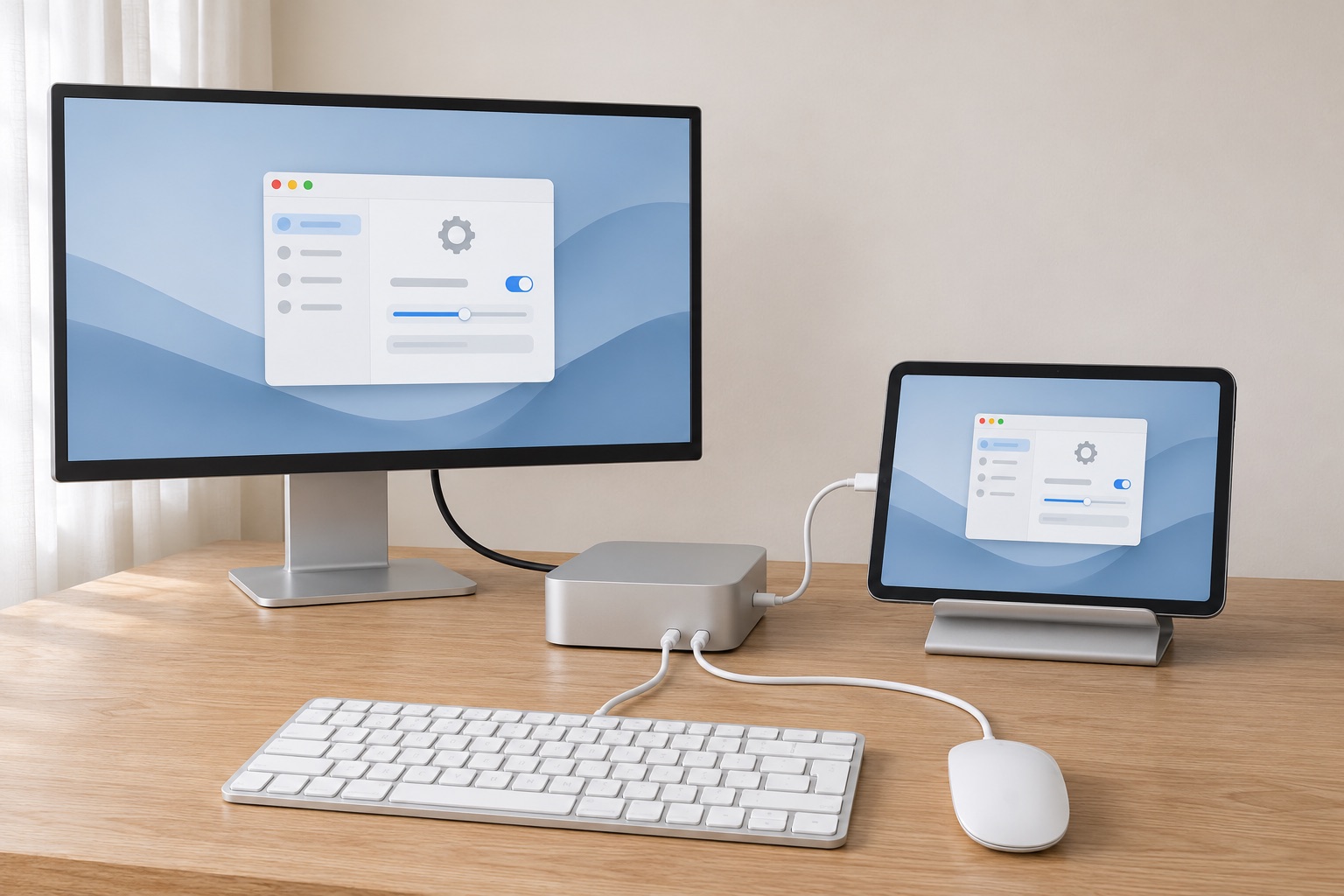
With no-screen mode on, once you're logged in, the iPad is this Mac's only screen. The first setup takes about 15 minutes, and you'll need to borrow a display or a TV for it. Here it is, step by step.
Before you start
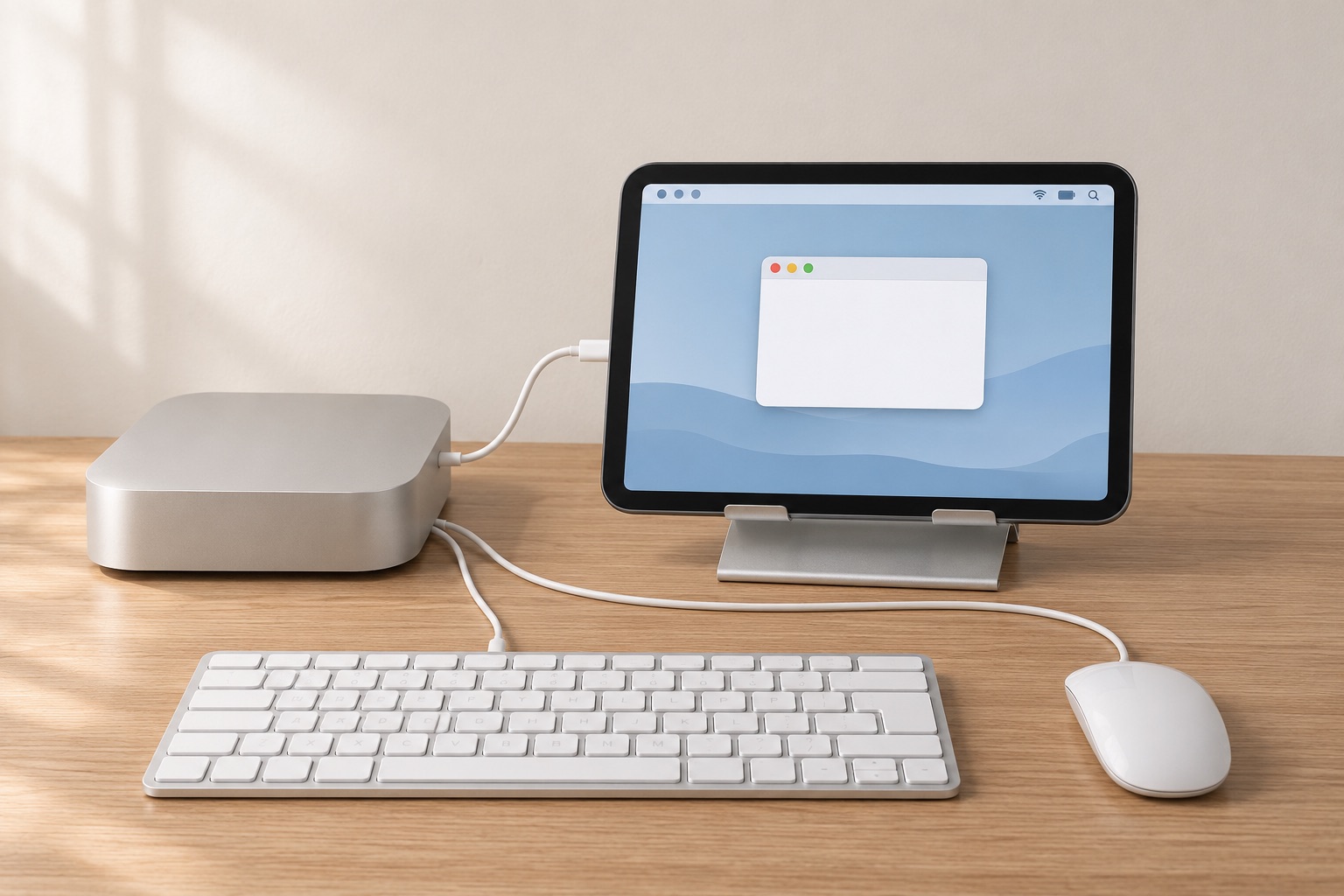
What you need.
A Mac with no screen of its own
A Mac mini or Mac Studio on macOS 14 or later. We've tested it on a Mac mini running macOS 26.
An iPad that supports Sidecar
Signed in to the same Apple Account as the Mac. Nothing to install on the iPad.
A cable that carries data
A USB-C cable, or the one your iPad uses. With a charge-only cable, the Mac won't see the iPad.
The Mac's own keyboard and mouse
Keep them plugged into the Mac. After a restart you may need to type your password on it without seeing the screen.
A borrowed display or TV
Only for the first setup. Unplug it when you're done.
Display² for iPad 0.9.6 or later
From 0.9.6, the app opens by itself after a restart and the iPad shows a picture by itself. It follows your Mac's language at first; from 1.0.0 you can choose English under Settings › General › Language, so its menus match this guide. If you have an older version, update first.
First setup, with the display connected
Five steps.
Put the app in Applications and open it
- Open the downloaded installer and drag "Display2iPad" to the Applications folder next to it.
- Double-click it in Applications. An iPad icon appears at the right of the menu bar.
Why it has to be in Applications: no-screen mode rests on an invisible "virtual display". If the app is anywhere else and macOS ends that virtual display, it can't come back, and the iPad loses its picture. Outside Applications, the no-screen mode switch is greyed out.
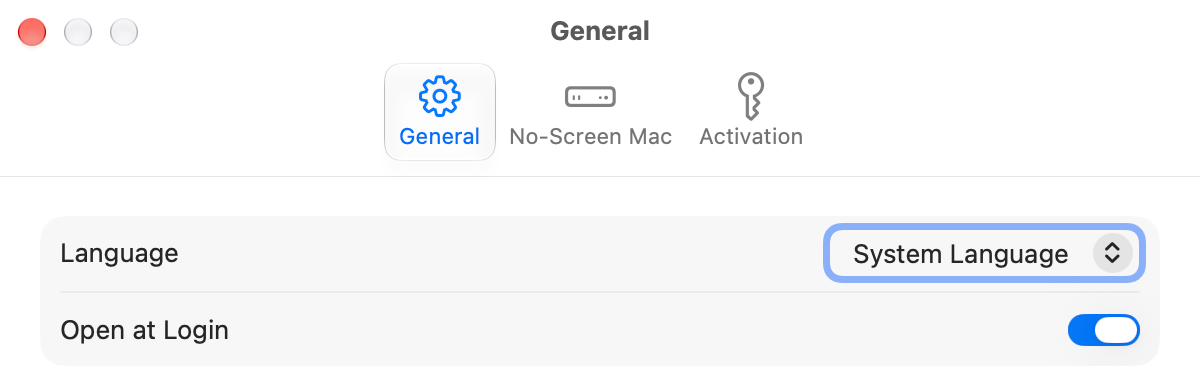
Turn on "Open at Login"
- Click the iPad icon in the menu bar and choose "Settings…".
- On the "General" page, turn on "Open at Login".
A Mac with no screen has to open Display² for iPad by itself after a restart, or the iPad won't get a picture.
Connect the iPad and check "Ready?"
- Connect the iPad to the Mac with the cable and wait a few seconds for it to connect. This lets the app remember this iPad.
- In "Settings…", click the "No-Screen Mac" page.
- Check "Ready?": every row should start with a green ✓. Until no-screen mode is on, the virtual display row says "Virtual display: appears with no-screen mode on".
If a row has an orange triangle, follow the note under it; the button on the right opens the matching System Settings page.
The two rows under "After a start" ("FileVault" and "Automatic login") only say what this Mac will do after a restart. Neither setting is right or wrong; that's your choice.
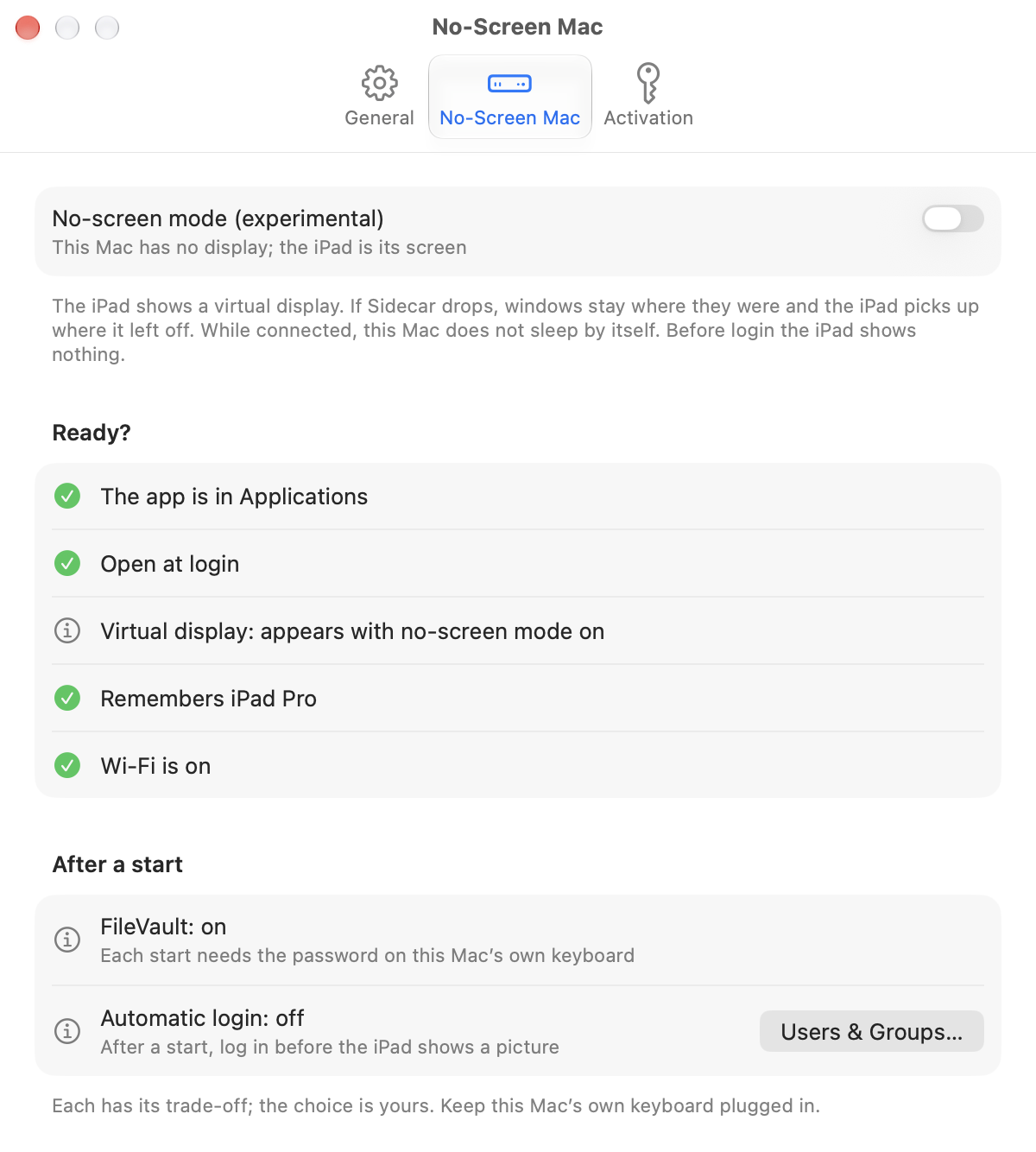
Turn on "No-screen mode (experimental)"
- Turn on the "No-screen mode (experimental)" switch at the top.
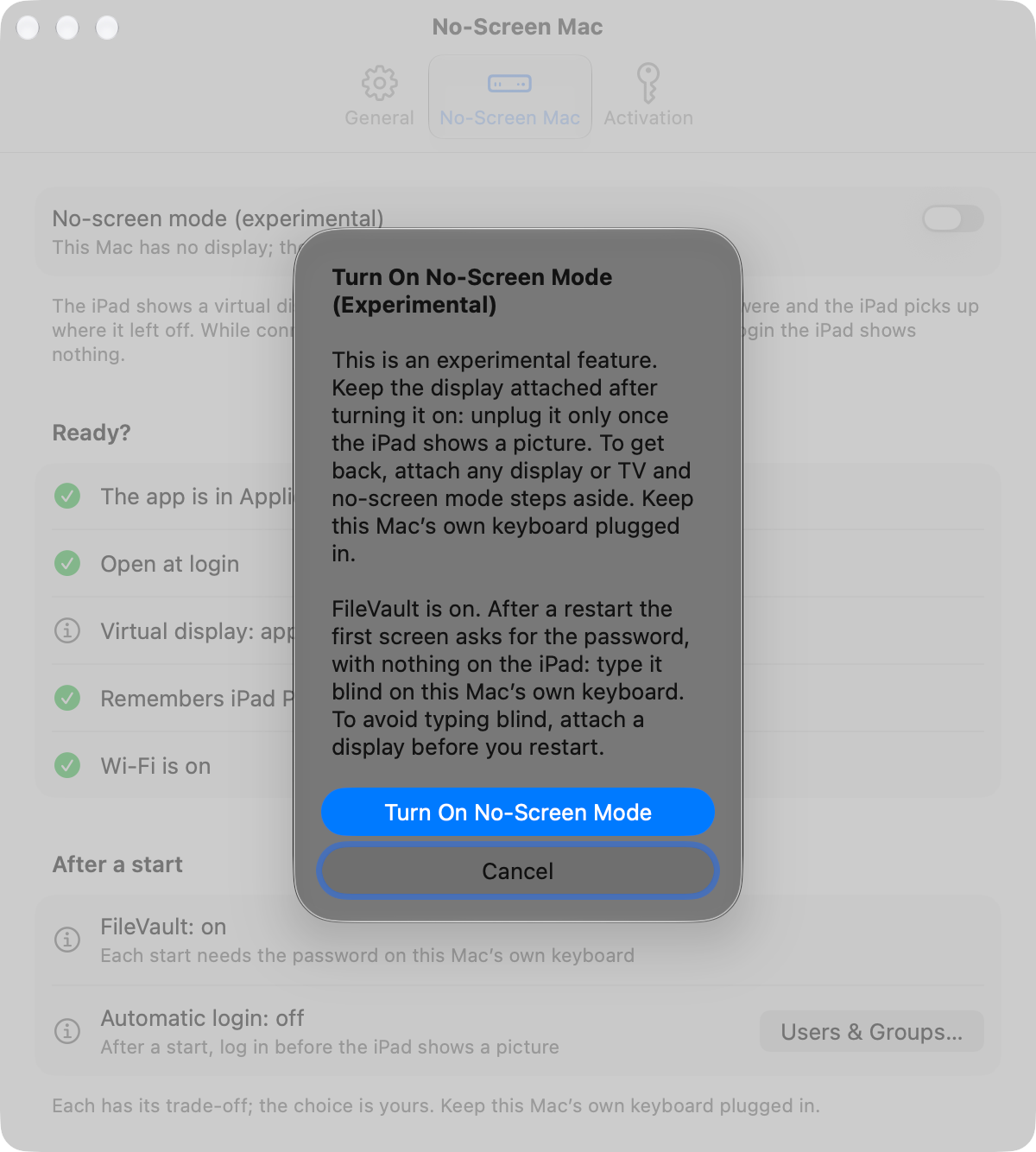
- Read the notes in the "Turn On No-Screen Mode (Experimental)" box, then click "Turn On No-Screen Mode".
- If macOS asks whether to allow it to run in the background, allow it. If "Ready?" shows "The virtual display needs your approval", click "Login Items…" in that row and turn it on under Allow in the Background in System Settings.
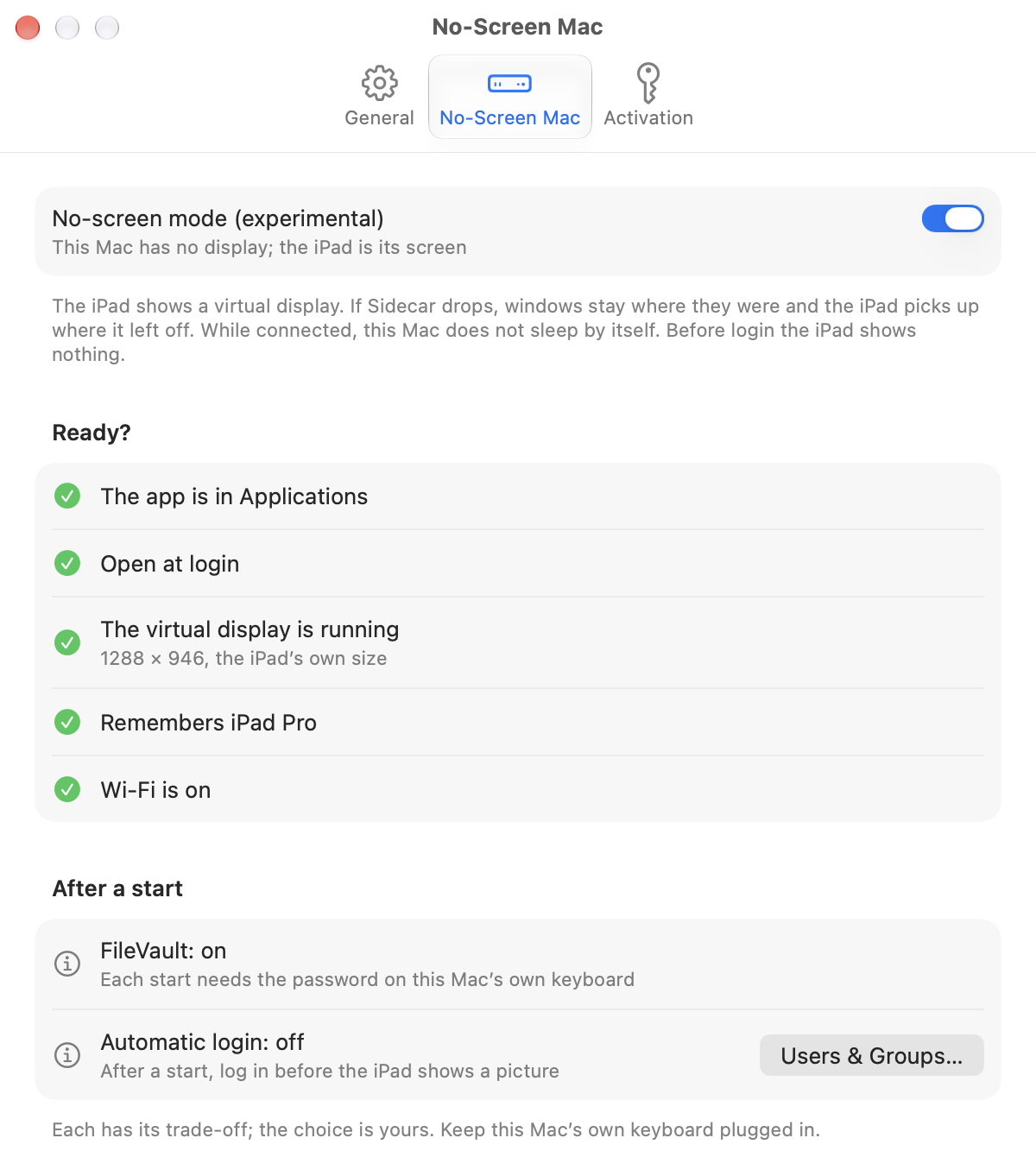
- After a few seconds, "Ready?" shows "The virtual display is running", with the iPad's own size next to it.
Don't unplug the display yet. Wait until the iPad shows a picture, then go to the next step.
When the iPad shows a picture, unplug the display's cable
- Make sure the iPad shows a picture.
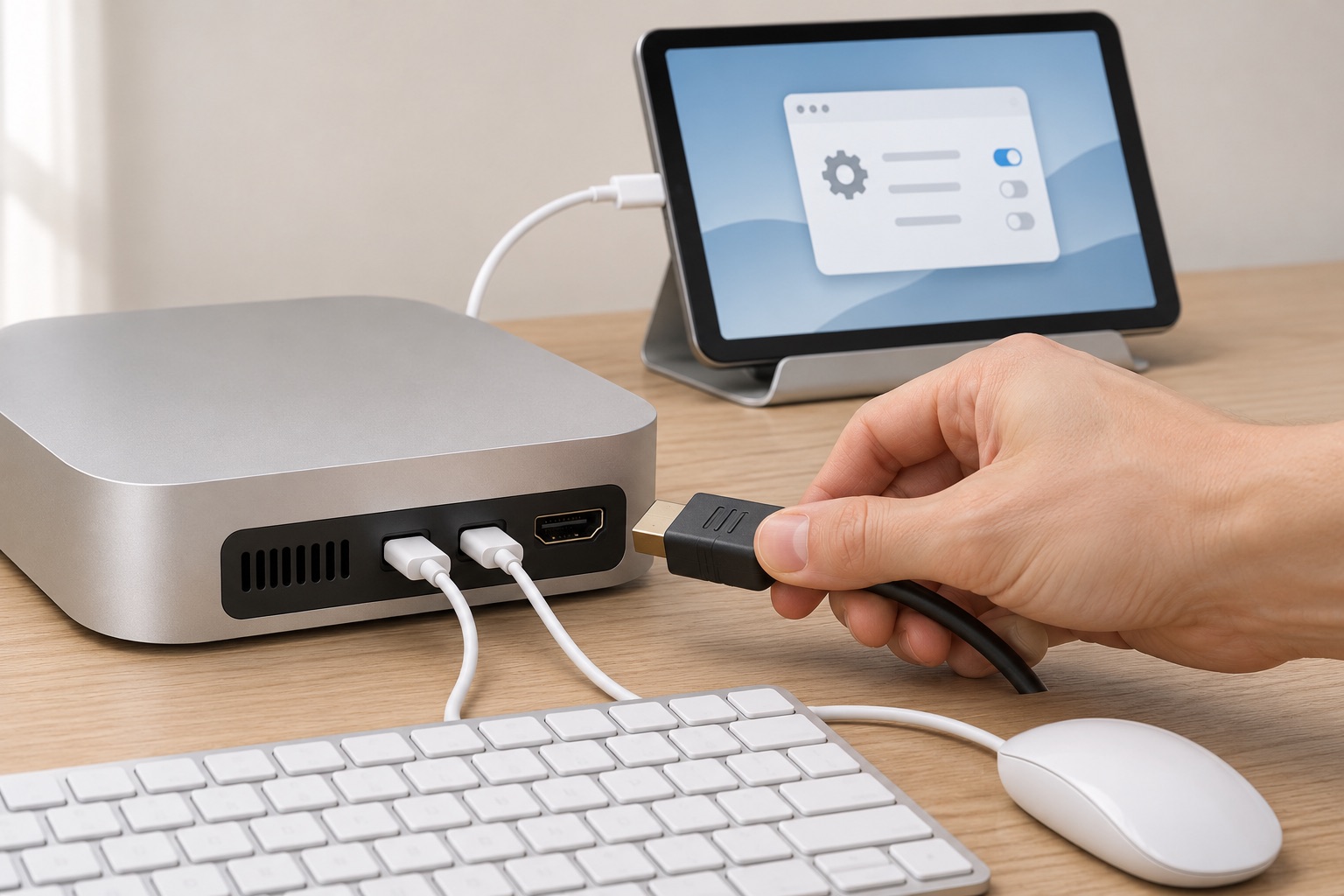
- Unplug the display's video cable (HDMI, USB-C or Thunderbolt) from the back of the Mac.
- Wait about 10 seconds: the Mac's desktop and menu bar are on the iPad, and the pointer moves across it.
Turning the display off isn't enough. While its cable is plugged in, macOS still treats it as a connected display, no-screen mode steps aside, and the iPad is just a second screen.
That's it. You can give the display back.
Once it's set up
Everyday use.
After a restart
Until you log in, the iPad stays black. That's a limit of Apple's Sidecar.
With FileVault on, or automatic login off: wait about a minute, type your login password on the Mac's own keyboard without seeing it, and press Return.
Once you're logged in: Display² for iPad opens by itself, and after ten or twenty seconds the iPad shows a picture.
If you'd rather not type blind, connect a display before you restart.
When the Mac is locked
The iPad shows the Mac's lock screen and password field. Type your password on the Mac's keyboard to unlock it.
Unplugging the iPad
Unplug the cable while connected, and the picture pauses for a moment, then carries on over Wi-Fi. Plug it back in, and it goes back to the cable.
Sleep
While the iPad is connected, this Mac won't go to sleep by itself. To turn it off, shut it down as usual.
Keep the keyboard plugged in
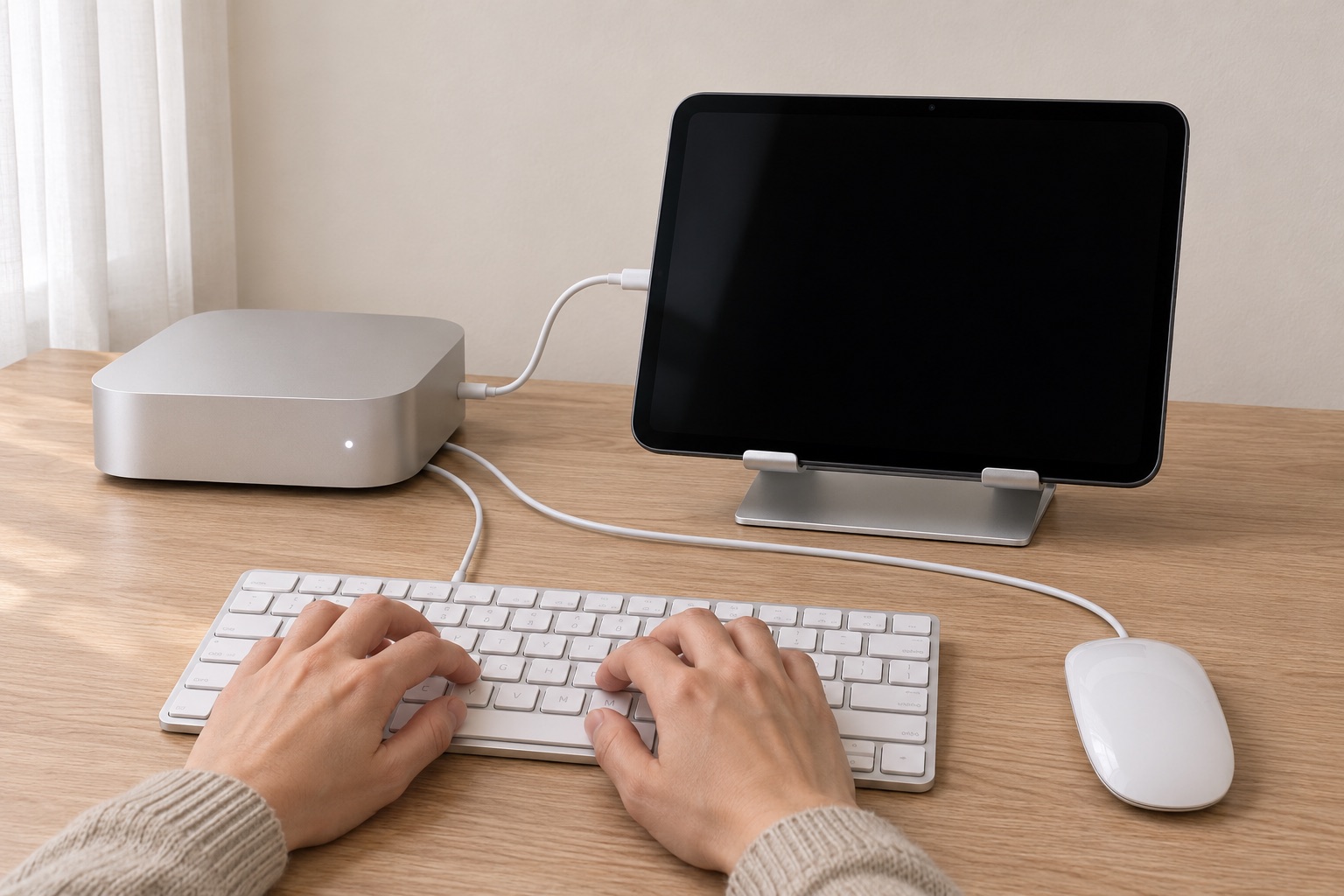
After a restart, or whenever the iPad has no picture for a while, the Mac's own keyboard is the only way in.
Going back
Use a display again, or turn no-screen mode off.
Just want to use a display
Connect any display or TV. No-screen mode steps aside, and the iPad becomes an ordinary second screen. Unplug the display, and the iPad is the only screen again.
Turn it off completely
Click the iPad icon in the menu bar › Settings… › No-Screen Mac, and turn off "No-screen mode (experimental)".
If you can't see anything: connect a display, open Terminal, type the line below and press Return. When you see no-screen mode off, it's off.
/Applications/Display2iPad.app/Contents/MacOS/Display2iPad --headless-off
If something's wrong
Check these first.
| No-screen mode is on, but the iPad still acts like a second screen | The display's cable is still plugged in. Turning it off isn't enough; unplug the video cable. |
|---|---|
| The no-screen mode switch is greyed out | The app isn't in the Applications folder, or no display was connected when you opened it. Put it in place as in step 1, connect a display and open it again. |
| "Ready?" says "The virtual display needs your approval" | Click "Login Items…" in that row and turn it on under Allow in the Background in System Settings. |
| Two minutes after a restart, the iPad still has no picture | Unplug the iPad's cable and plug it back in. If that doesn't help, connect a display to see where the Mac has stopped. On 0.9.4 or 0.9.5, download the latest installer from this site, drag the app into Applications to replace the old one, and open it. |
| The menu says "Connected, but no picture" | Click "Disconnect and Reconnect" below it. If that doesn't help, unplug the cable, unlock the iPad and plug it in again. |
| Anything else | Connect a display and click "Send Report…" in "Settings… › General". Email the report number, your Mac and iPad models and their system versions to support@display2.app. |